Step 1
Upload Your Base Photo
Start with the photo you want someone added to — a group shot, family portrait, wedding photo, or any picture that feels incomplete.
AI Photo Compositing — No Photoshop Needed
Upload your base photo and a portrait of the person you want to add. Kinpict's AI blends them together — matching light, shadow, and scale so it looks like they were always there.
Separate Inputs
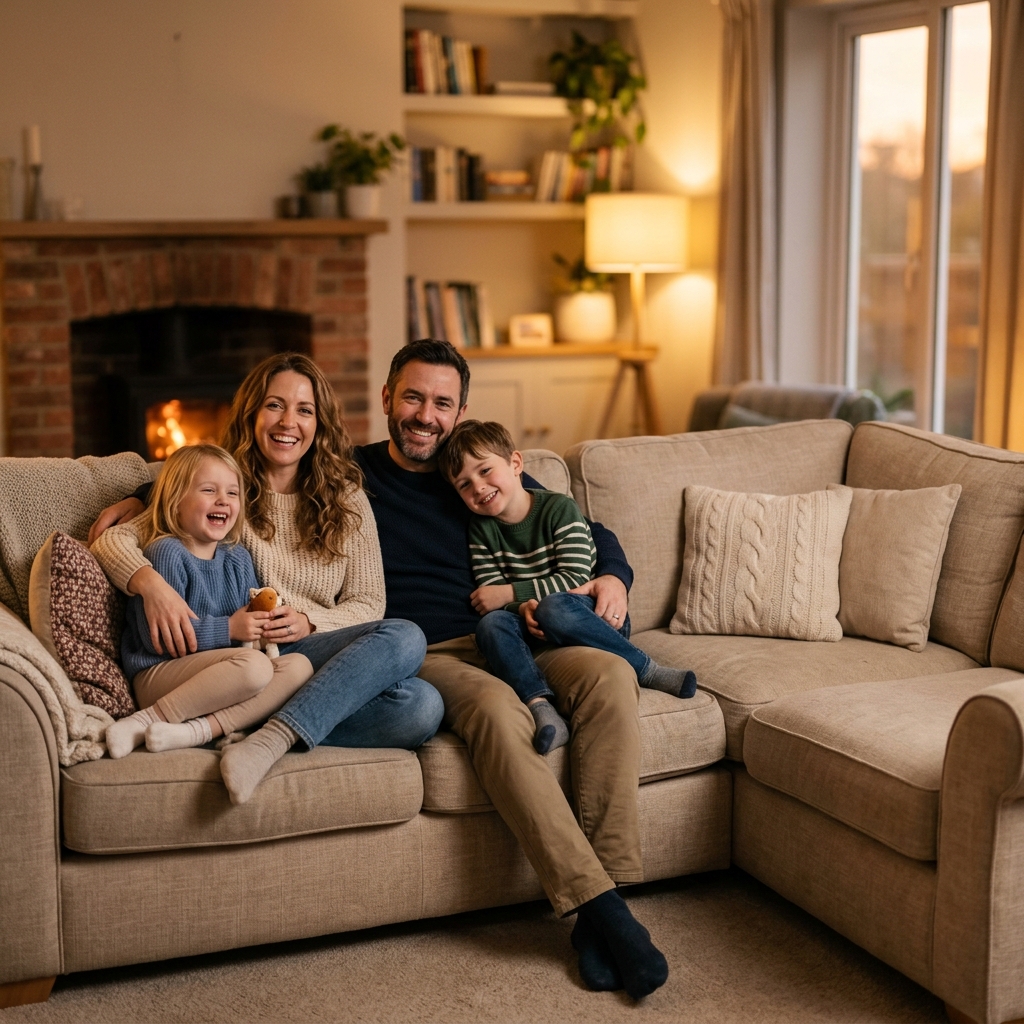
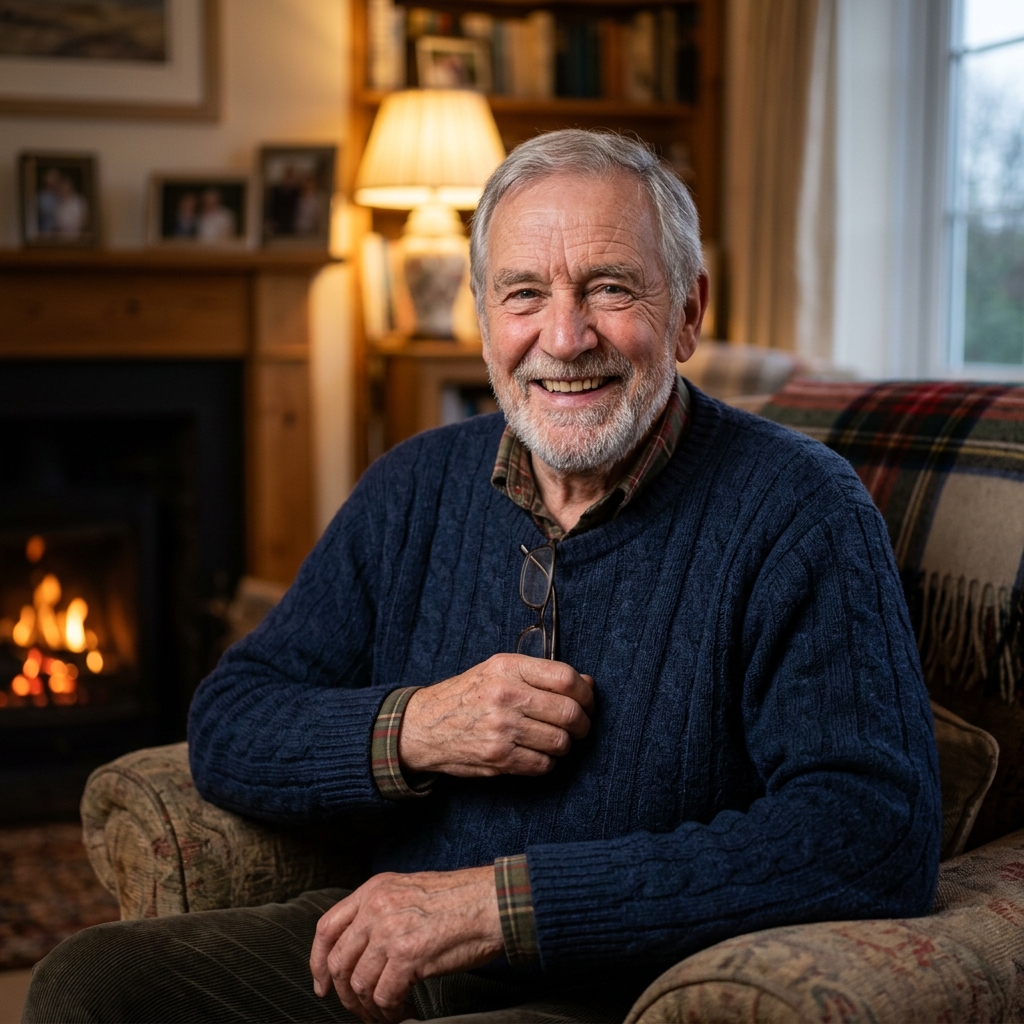
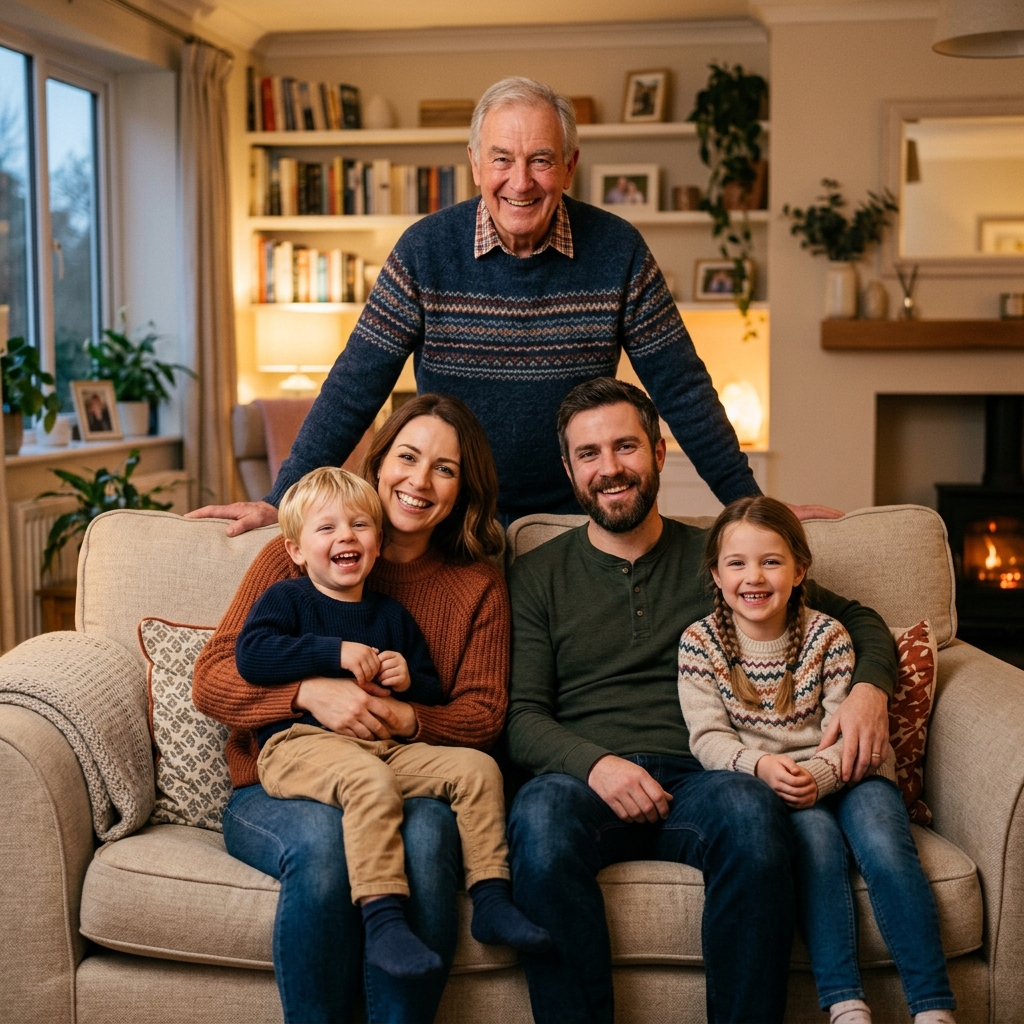
Result Preview
Natural family composition.. Upload photos, then generate one cohesive family photo.
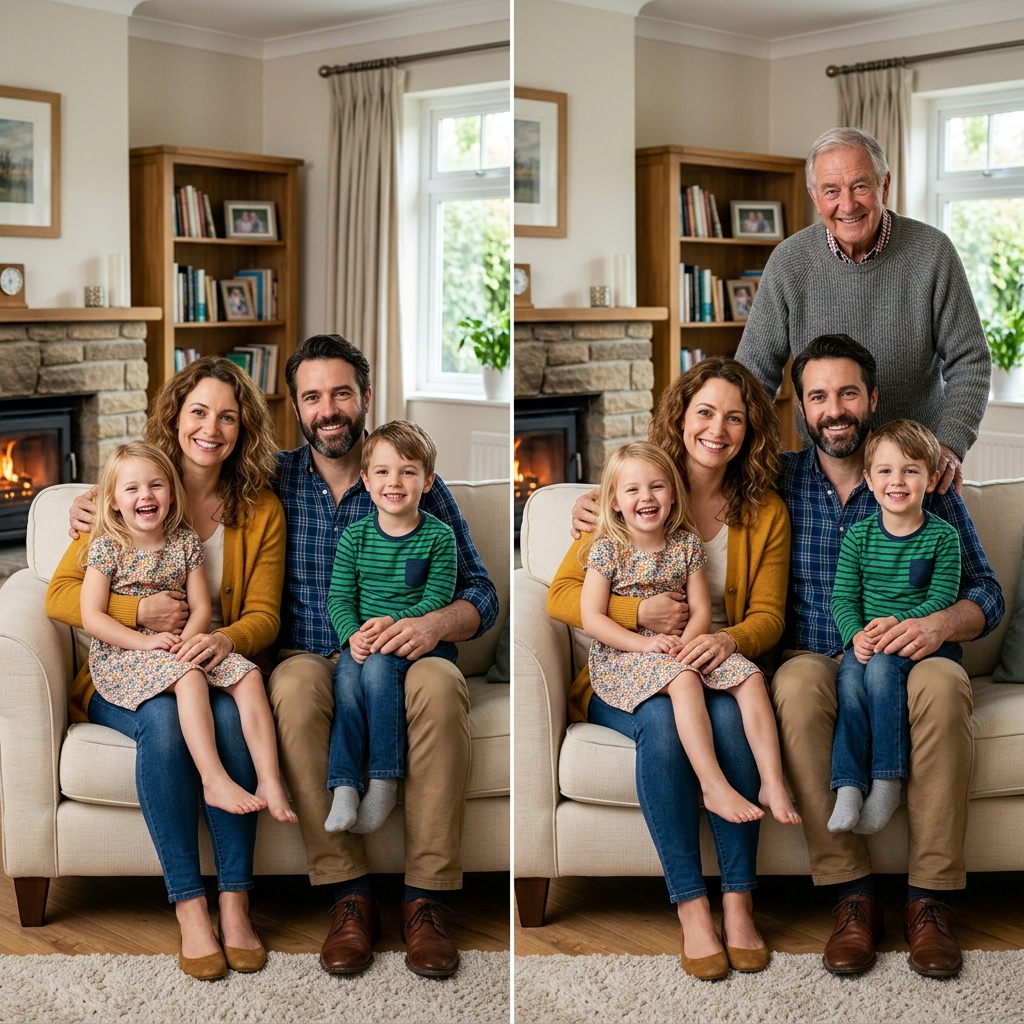
No design skills required. Upload two photos, optionally describe the placement, and our AI does all the blending work for you.
Step 1
Start with the photo you want someone added to — a group shot, family portrait, wedding photo, or any picture that feels incomplete.
Step 2
Provide a clear photo of the person you want to add. A front-facing portrait with natural lighting works best. No need to crop or remove the background yourself.
Step 3
Tell the AI where to place the person — "standing on the left," "seated in the front row," or leave it blank and let AI decide the most natural position.
Step 4
Our AI blends the person into the photo — matching lighting, scale, and shadows. Download your high-resolution result in under 30 seconds.
Ready to complete your photo?
Bring your family and friends together in one frame naturally using Kinpict's advanced AI.
From family reunions and weddings to memorial portraits and holiday cards — here are the most common reasons people use this tool.
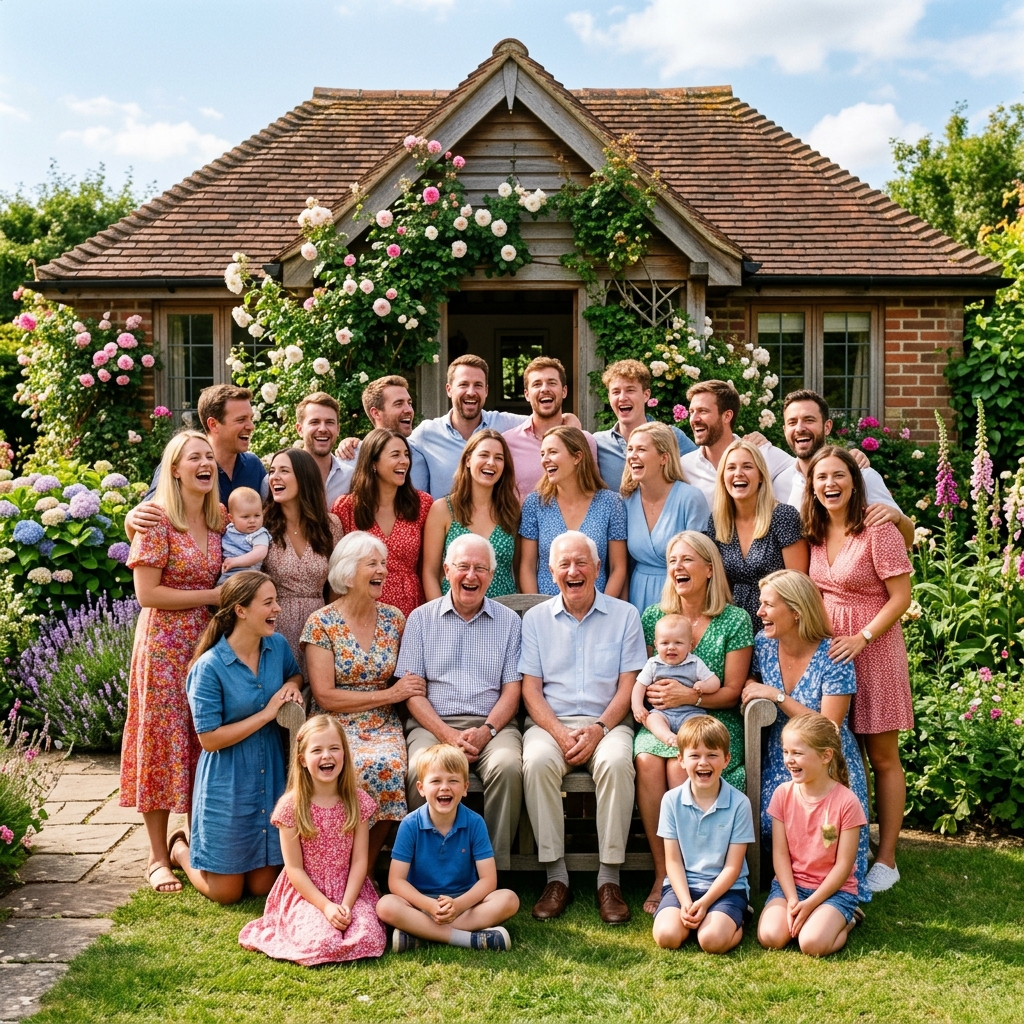 Reunion
 "Dad couldn't make it across the country in time — so they added him in."
Someone always misses the family gathering. Upload the group shot and a portrait of the absent member, and our AI places them in naturally — matching light, height, and posture.
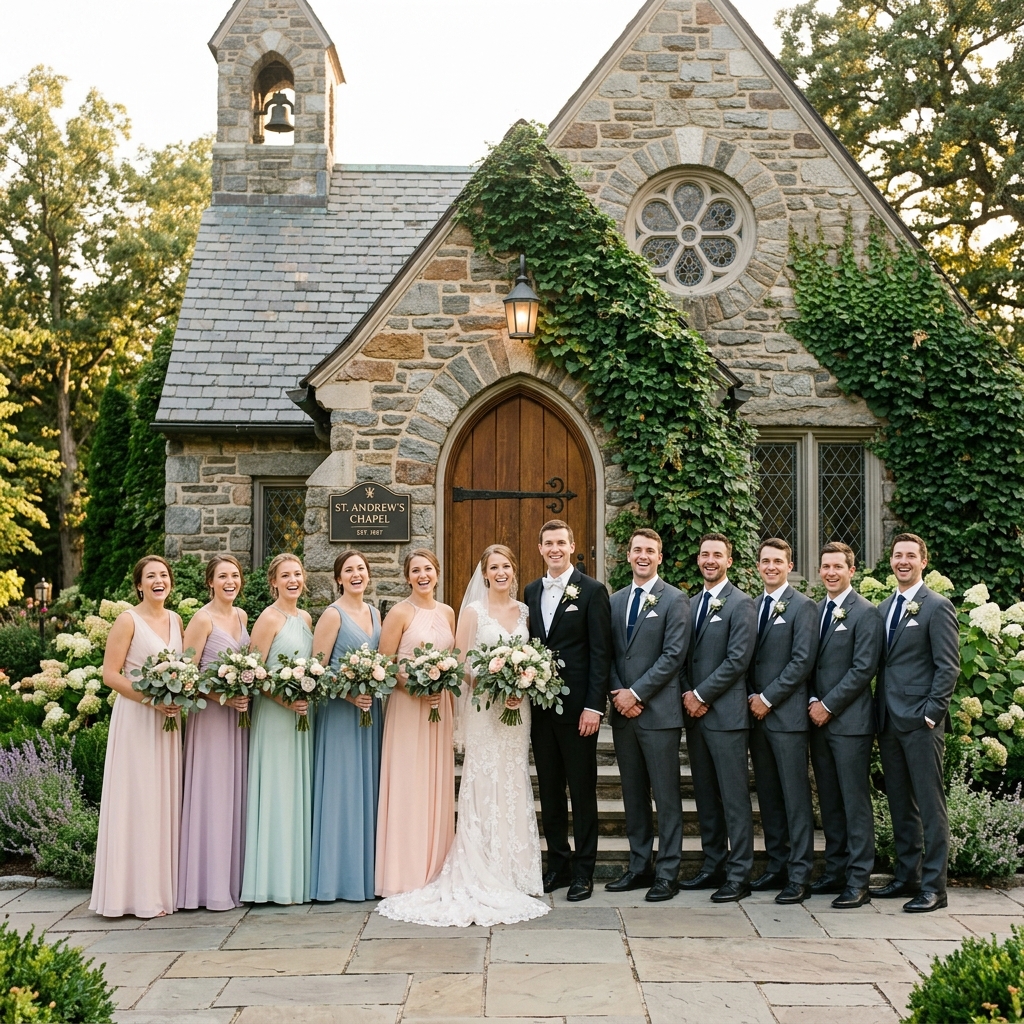 Wedding
 "The bridesmaid fell sick the morning of the ceremony."
Complete your wedding portraits by inserting bridesmaids, groomsmen, or family members who couldn't make it. The AI matches the formal style and lighting.
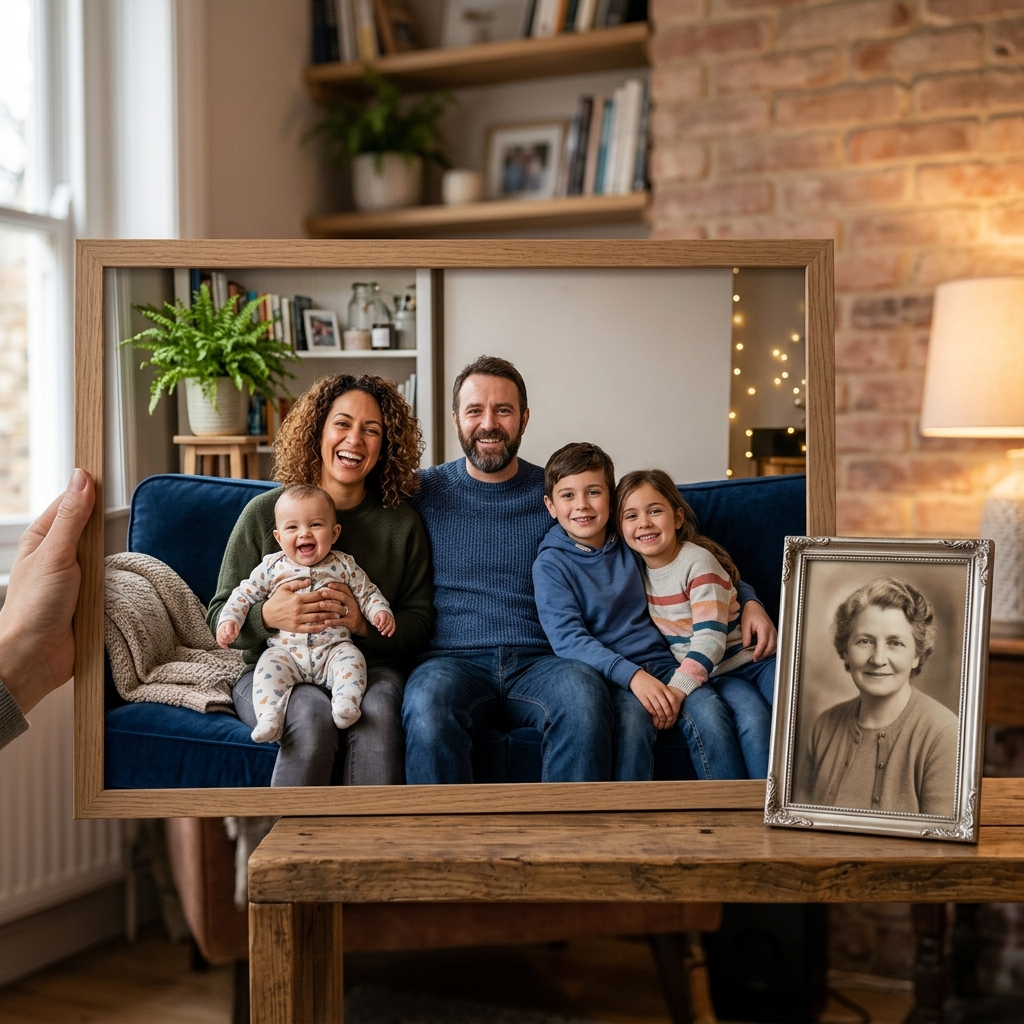 Memorial
 "Grandma passed before meeting her newest grandchildren."
One of the most meaningful uses of this tool: upload a portrait of a loved one who has passed, and create a final family portrait that includes them.
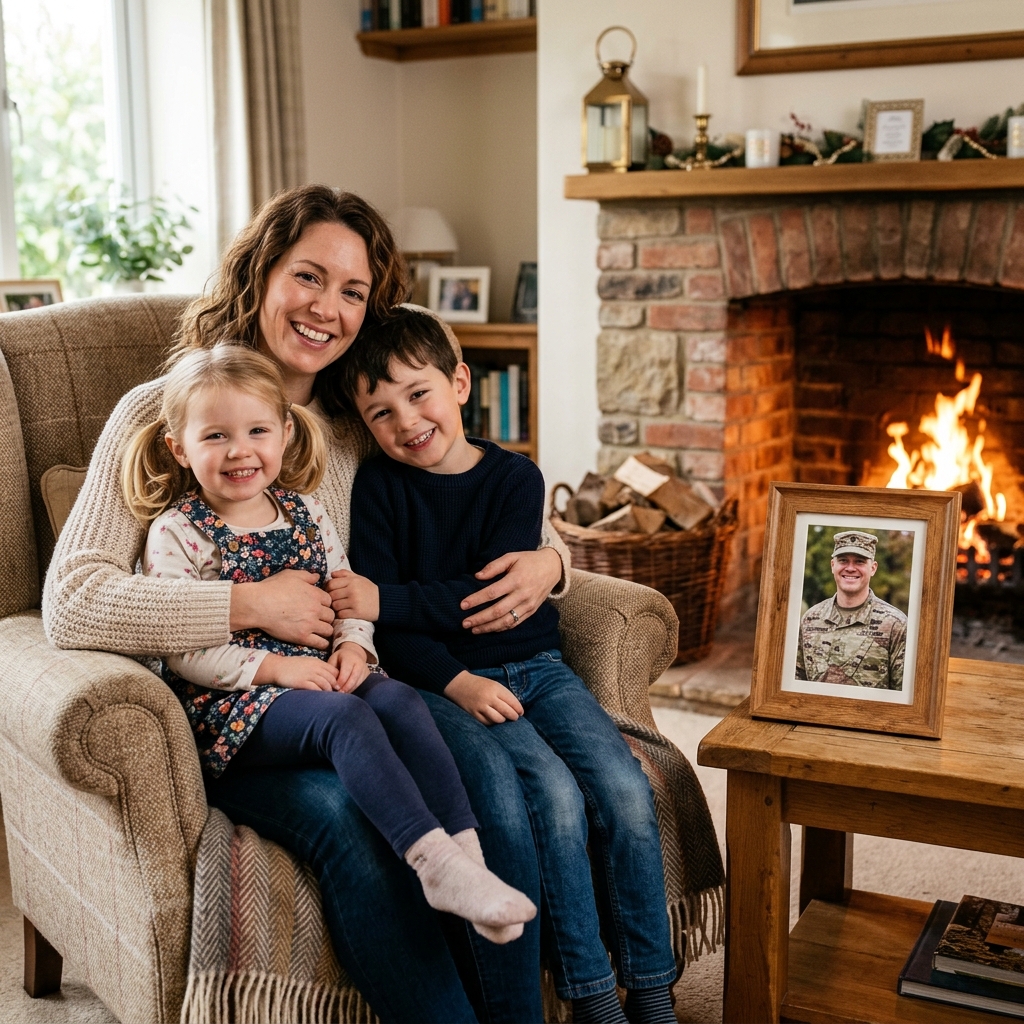 Military
 "Dad is deployed overseas for the holidays."
Keep your holiday portraits complete even when a service member can't be home. The AI blends them into any holiday scene naturally.
Professional compositing in Photoshop takes hours of skilled work. Our AI automates every technical step — so the result looks just as convincing, without the effort.
Manually adjusting shadows in Photoshop takes hours of experience. Our AI detects the light direction in your base photo and automatically applies matching shadows to the added person.
Photoshop requires clipping masks, feathering, perspective warp, and color correction — skills that take years to develop. With Kinpict, you upload two photos and describe what you want.
A professional photo compositor might take 30–60 minutes to produce a believable result. Our AI processes your request in seconds, so you can iterate quickly and download instantly.
Unlike AI generators that create generic faces, our model preserves the actual likeness of the person you're adding — keeping their facial features, expression, and skin tone true to the original.
❌ Manual Photoshop
✅ Kinpict AI
The quality of your result depends heavily on the source photos. Follow these tips to get the most natural-looking blend.
The most important factor is lighting. Choose a portrait of the person taken under similar conditions to the base photo — both indoors with soft light, or both outside in natural daylight. Matching light direction produces the most convincing results.
Avoid extreme high-angle selfies or low-angle shots for the person you're adding. A straight-on, eye-level photo helps the AI align perspective naturally with the rest of the group.
Heavily filtered, blurred, or very small images reduce blending quality. Use original, unfiltered photos at the highest resolution available — at least 800×600 pixels for best results.
If you want the person placed in a specific location — behind someone, seated, or on the far right — describe it in the optional prompt field. The more specific you are, the more accurate the placement.
Yes. Kinpict offers free credits when you sign up. Each generation uses 3 credits, and you receive free credits to get started — no credit card required to try.
No. Our AI automatically removes the person's original background, adjusts their lighting, matches their scale to the scene, and blends realistic shadows. No editing skills are needed.
Two photos: the base photo you want to add someone to, and a clear portrait of the person you want to add.
In most cases, yes. Our AI analyzes the lighting direction, color temperature, and scale in both photos and adjusts the added person to match. For best results, use photos with similar lighting conditions and camera angles.
Typically under 30 seconds. The exact time depends on image size and server load.
No. Your photos are processed securely and never stored permanently or used for model training. All uploads are deleted after processing is complete.
JPG, PNG, and WebP. For best results, use images at least 1MB in size.
Yes. This is one of the most meaningful uses of our tool. Upload a clear portrait of the person — even from an older or scanned photo — and our AI will blend them naturally into the group.
No watermark is added to downloaded images. High-resolution downloads are available on all plans.
Yes. Kinpict works in any modern browser, including on mobile devices. No app download is required.
Use the optional Placement prompt field to describe the desired position — for example, "standing on the left side of the group" or "seated in the front row." The AI follows your description.
The most common cause is a large difference in lighting or camera angle between the two photos. Try choosing a portrait taken in similar lighting and at a similar eye level. You can also re-generate with a more specific prompt for improved placement.
Currently, each generation adds one person at a time. You can run the tool multiple times to add additional people to the same base photo.
The AI focuses on compositing the new person into the scene and does not alter existing faces. In complex scenes with overlapping subjects, minor adjustments may occasionally occur.
Yes. Group photos work well as base images. Provide a clear portrait of the person you want to add and describe their desired placement in the scene.
Output images are generated in high resolution, suitable for printing on canvas, framing, or sharing digitally. Paid plans support the highest output quality.
Yes — that's exactly what this tool is designed for. Even if the photos were taken years apart or in completely different environments, the AI adjusts lighting and scale to produce a cohesive result.
Free credits allow a limited number of generations. Paid plans offer higher credit volumes for unlimited use.
Personal and family use is fully supported. Please review our Rights and Ownership policy for commercial licensing details.
The Add Missing Person page is specifically designed for family members who couldn't attend a gathering — with presets tailored to that scenario. This page covers the broader task of adding any person to any type of photo, with guidance for a wider range of situations including weddings, graduations, and memorial portraits.
Ready to complete your photo?
Add Anyone to a Photo — Free to Try, No Skills Required
Upload two photos and get a natural, realistic result in under 30 seconds. No Photoshop. No design experience. No watermarks.
Choose a method to continue.
Enter your email to receive a 6-digit verification code.