Step 1
Upload Your Photos
Select 2 to 6 separate individual photos of your family members from your computer or phone.
AI Family Photo Combining — Not a Collage, a Real Portrait
Upload 2 to 6 separate photos of your family members. Kinpict's AI handles the lighting, scale, and blending — creating a portrait that looks like everyone was actually there together.
Separate Inputs
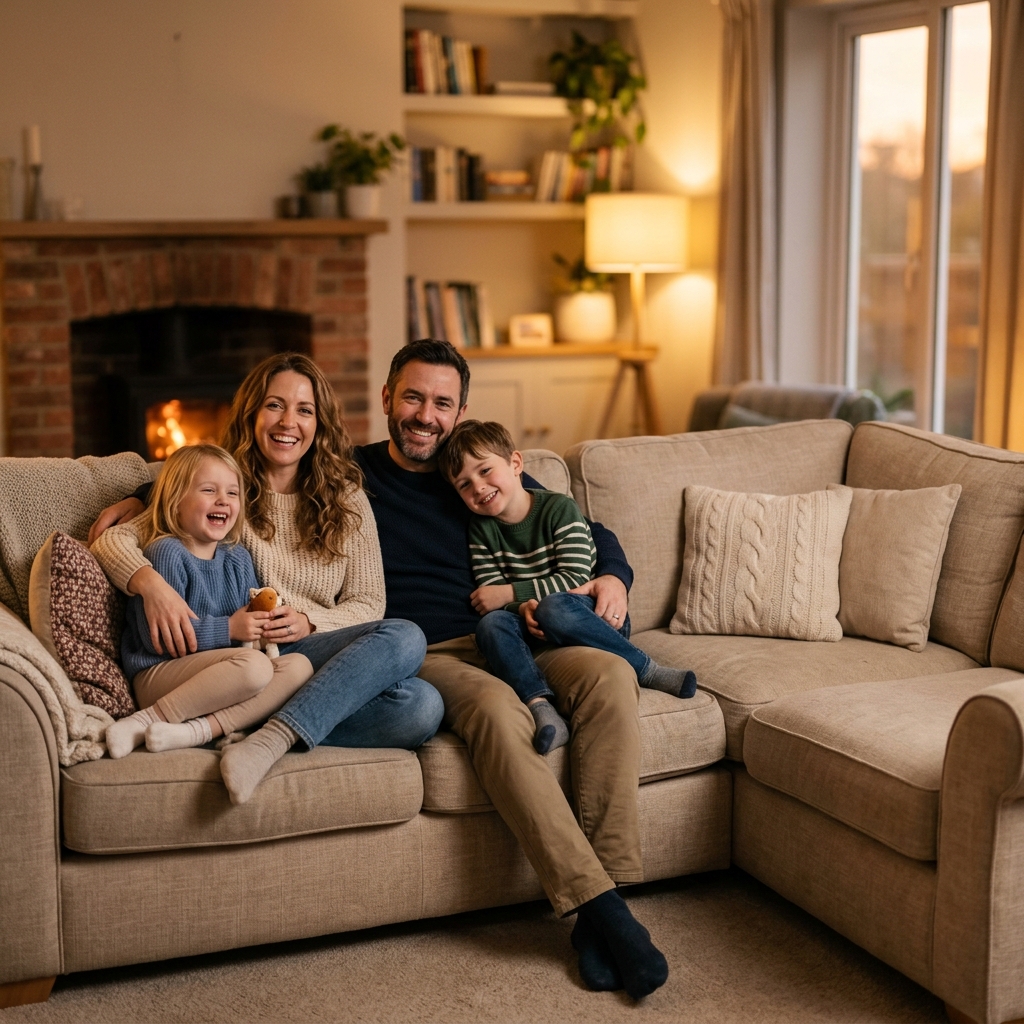
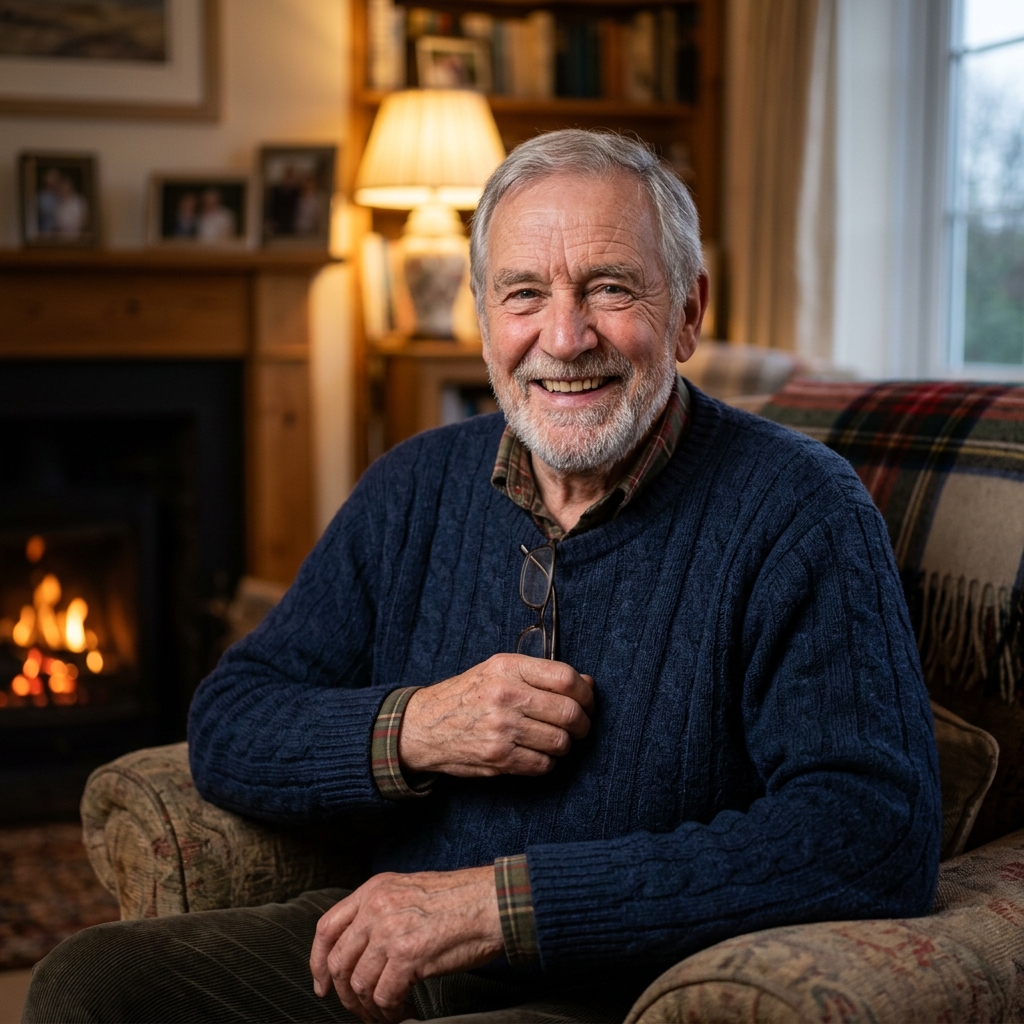
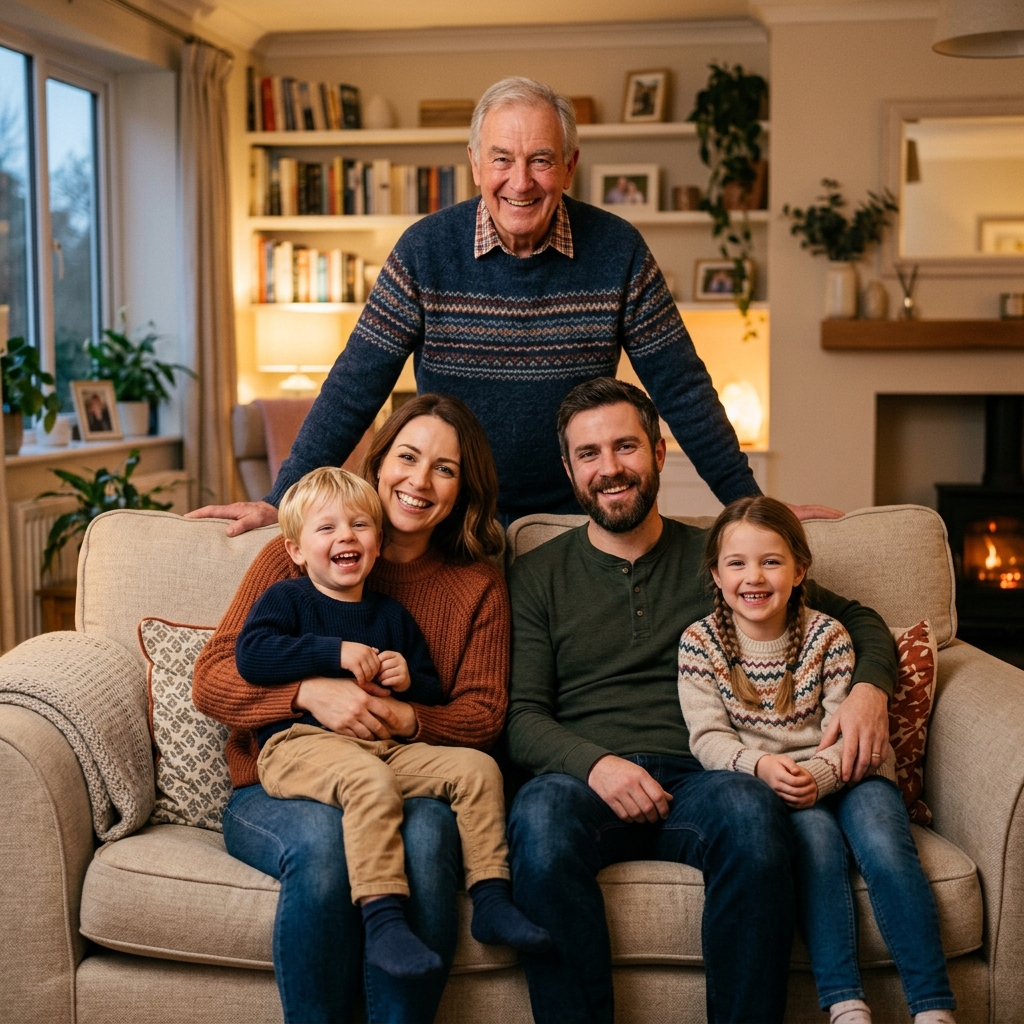
Just places your photos side-by-side in rigid grids. The background remains mismatched, lighting looks inconsistent, and there is no unified depth.
Extracts subjects, normalizes lighting and shadows, aligns heights, and blends everyone into one shared background for a real family portrait.
Result Preview
Natural family composition.. Upload photos, then generate one cohesive family photo.
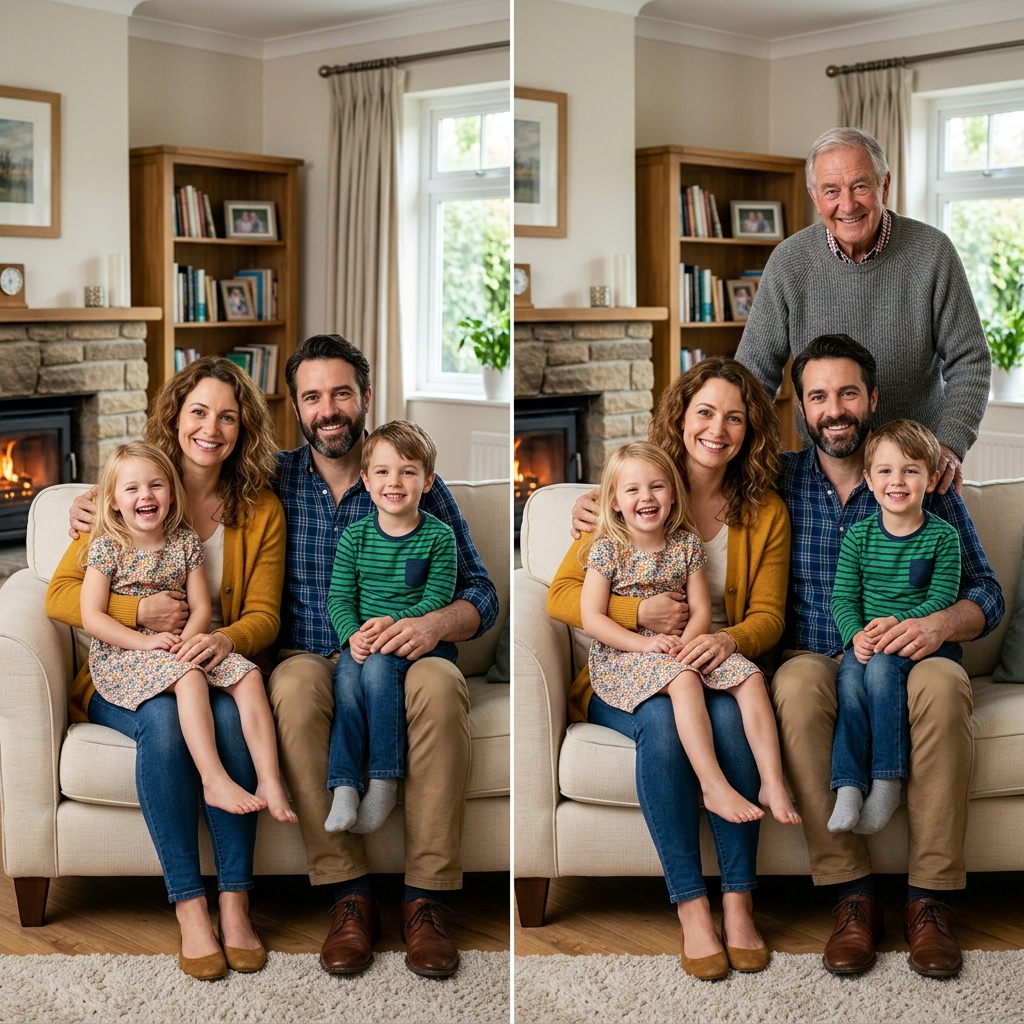
No design skills or editing experience needed. Our AI family portrait combiner handles all the technical details automatically.
Step 1
Select 2 to 6 separate individual photos of your family members from your computer or phone.
Step 2
Describe the desired background (e.g. cozy living room, sunny park) or leave it blank and let AI compose it.
Step 3
Our AI extracts each person, balances lighting and shadows, and generates a unified group photo in 30 seconds.
Ready to combine your family photos?
Start blending separate individual pictures into one high-resolution family portrait now.
Whether family members live in different cities, someone missed a reunion, or you want to honor a passed loved one.
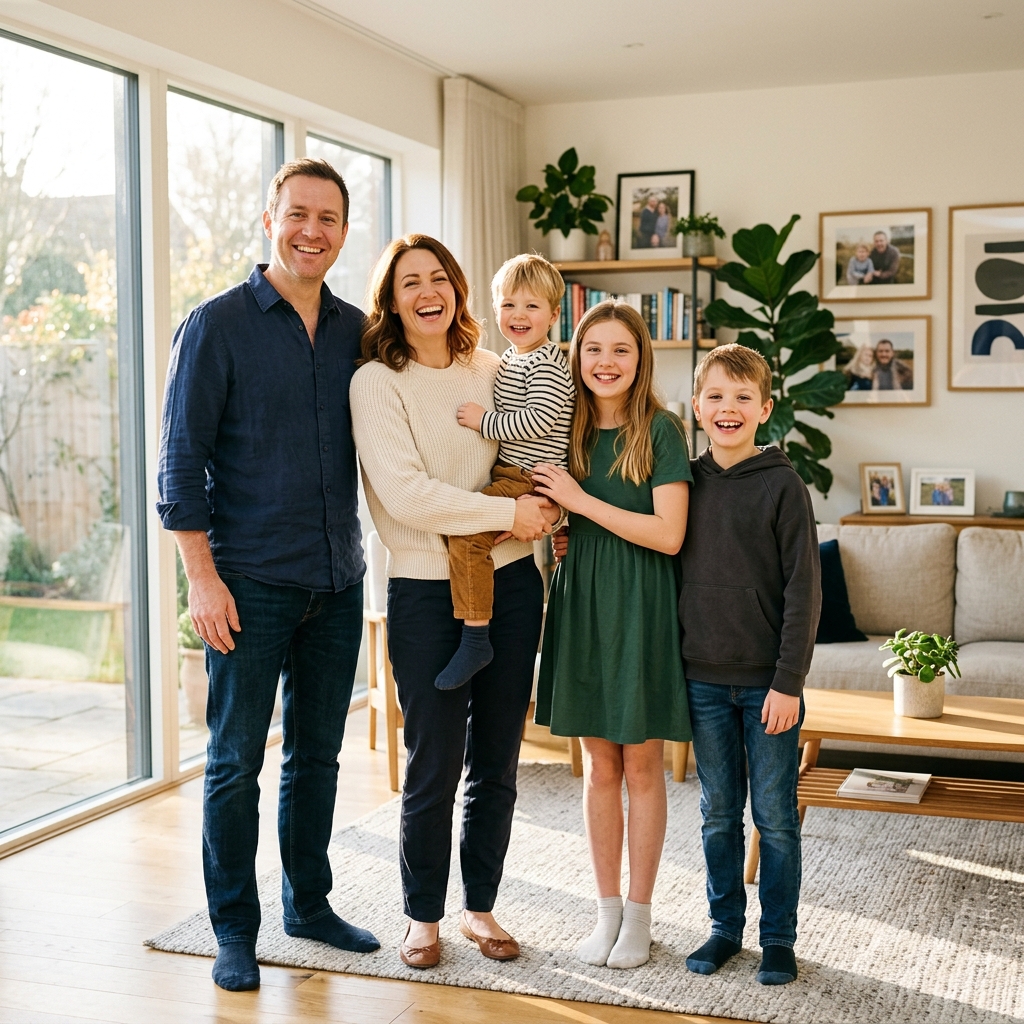 Reunion
 "My parents live across the country. We haven't been in the same place for three years."
Combine separate photos of family members living in different locations or time zones into a single, cohesive family portrait that looks 100% natural.
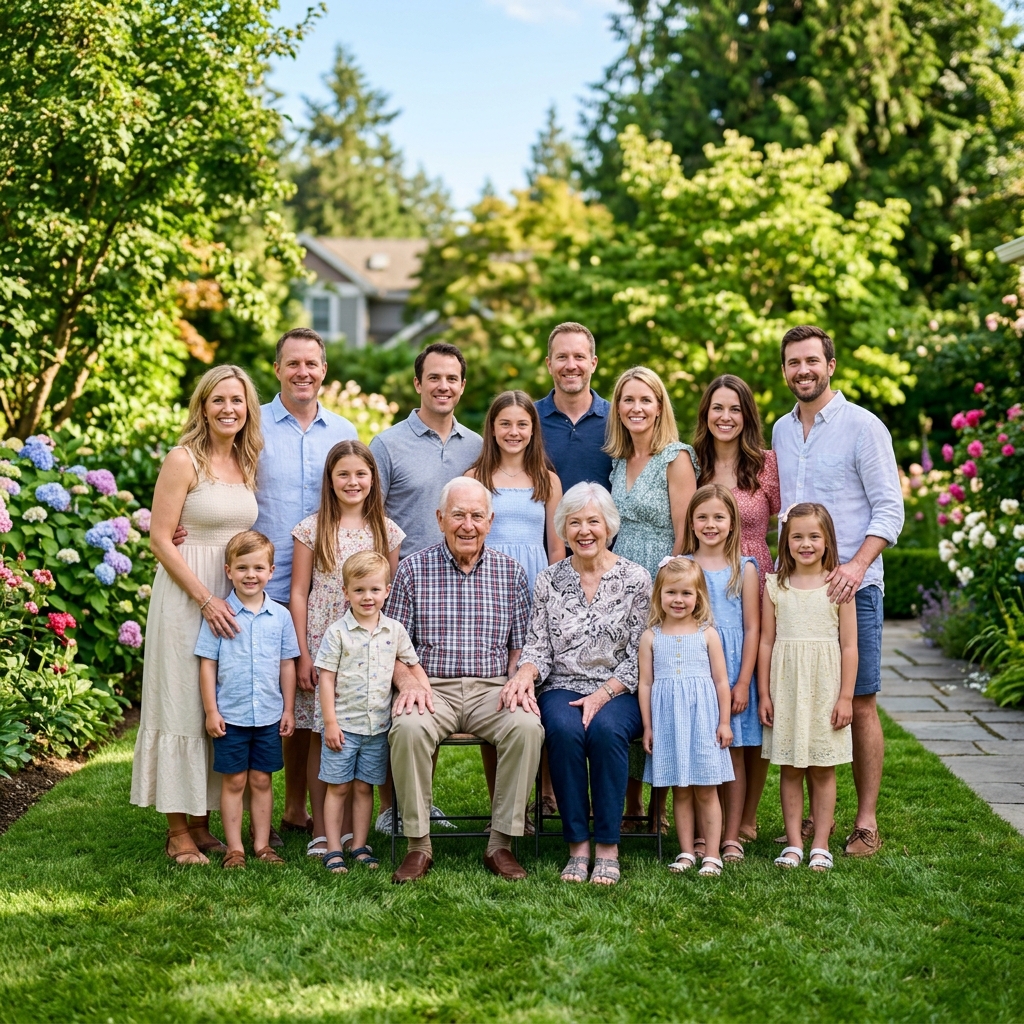 Reunion
 "My brother couldn't fly home in time — I added him to our reunion photo anyway."
Complete your reunion group photo even if someone missed the gathering. Provide the group shot and their individual photo to blend them in seamlessly.
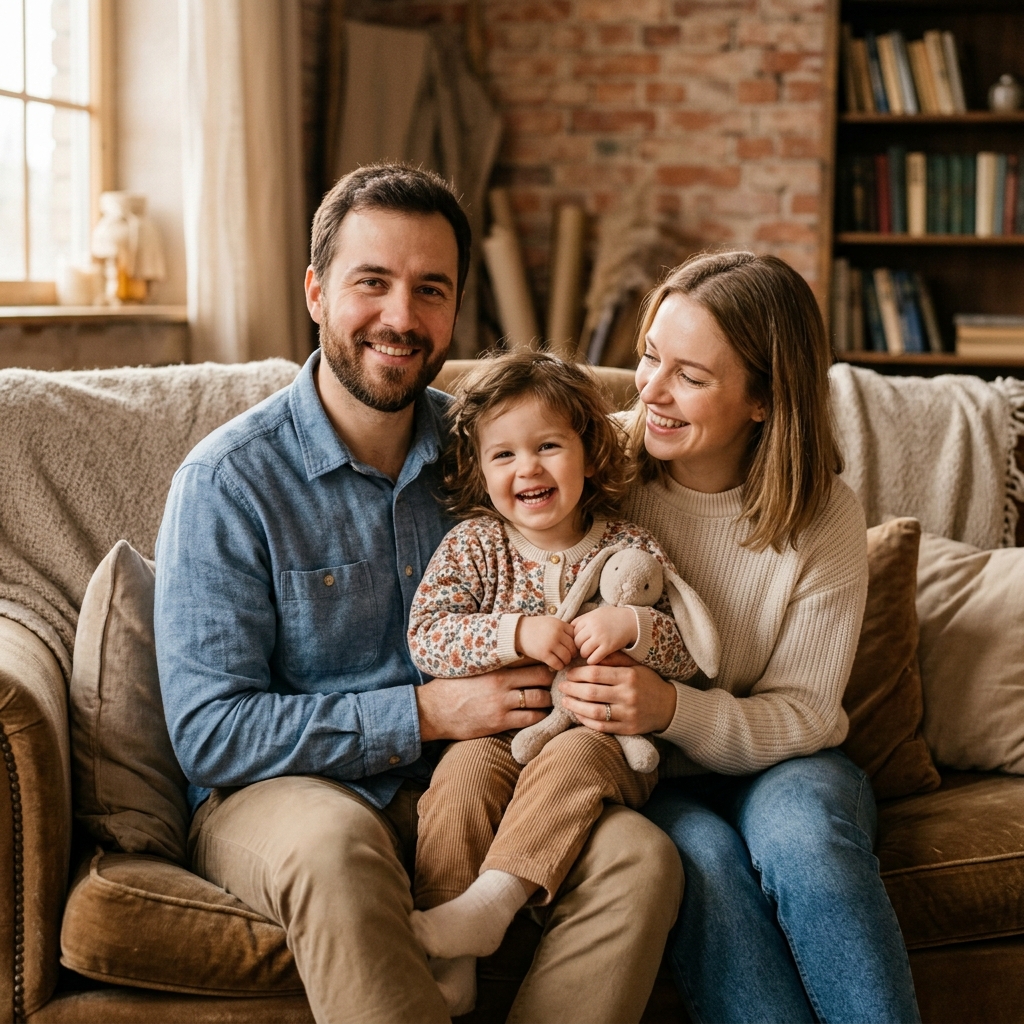 Memorial
 "We lost Grandma last year. She never got to meet my youngest child."
Bring generations together. Gently blend older or scanned portraits of deceased loved ones with current photos to create a treasured memorial keepsake.
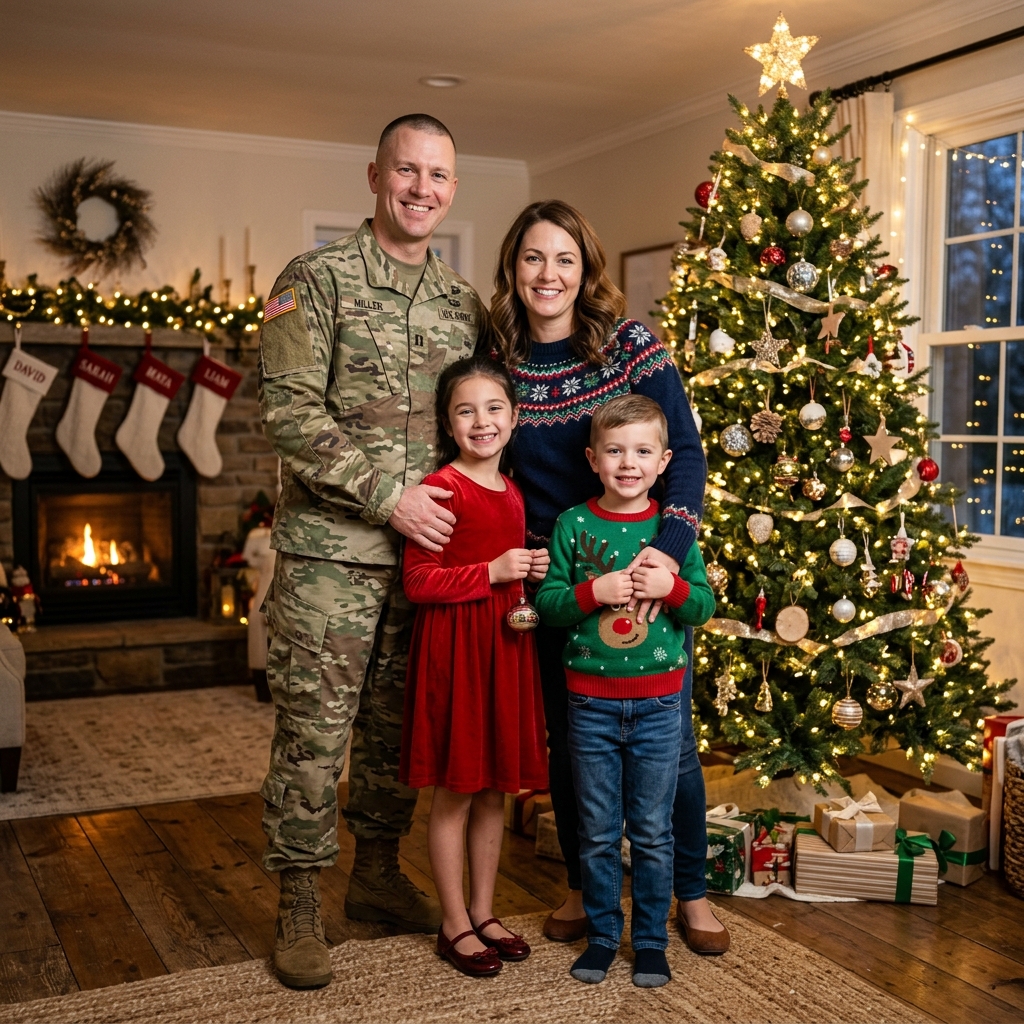 Military
 "Dad is deployed overseas for the holidays."
Keep your holiday cards complete when family members are away on active deployment. Place them naturally into your festive holiday pictures.
Professional compositing in Photoshop takes hours of skilled work. Our AI automates every technical step — so the result looks just as convincing, without the effort.
AI detects light direction and temperature across all source pictures, automatically drawing realistic shadows.
No manual background cutting, feathering, perspective warp, or color correction required. Simply upload and go.
A professional composite can take hours of manual work. Kinpict does it instantly so you can experiment.
Our advanced model retains real facial likeness, details, and expressions instead of creating generic AI-generated faces.
❌ Manual Photoshop
✅ Kinpict AI
The quality of your result depends heavily on the source photos. Follow these tips to get the most natural-looking blend.
For the most realistic blend, choose source photos taken in similar lighting (e.g. all soft indoor lighting or all natural daylight).
Photos taken straight-on or at eye level are easiest for the AI to align perspective and body posture naturally.
Clear, high-quality portraits maintain facial features and likeness during the AI blending process.
Use the optional prompt input to specify positions (e.g. 'parents standing behind grandparents seated').
It means you upload separate photos of individual family members, and our AI extracts each person, matches their lighting, adjusts their scale, and places them into a single, unified portrait — so it looks like everyone was photographed together in the same scene. This is fundamentally different from a grid collage, where photos are just placed side-by-side.
A collage tool (like Canva) arranges your photos in separate boxes or grids. Kinpict AI removes the original backgrounds, re-lights each person to match a shared scene, and blends them into one cohesive portrait. The result looks like a real group photo, not a scrapbook layout.
You can upload between 2 and 6 individual photos. For best compositional results and facial clarity, we recommend keeping the group at 6 people or fewer per generation.
No — that's exactly what this tool is designed for. Our AI normalizes lighting, color temperature, and scale across all uploaded photos so they appear to belong to the same scene, even if the originals were taken years or cities apart.
Yes. Unlike AI portrait generators that create generic AI faces, Kinpict works to preserve the actual facial features of the people in your photos. Using clear, well-lit, unfiltered source photos gives the best likeness results.
Front-facing portraits at eye level with clear, well-lit faces work best. Avoid heavily filtered images, blurry selfies from extreme angles, or photos where the face is partially obstructed.
Yes. All uploaded photos are processed securely and permanently deleted from our servers within 24 hours of generation. We never use your personal family photos to train or improve our AI models.
Kinpict offers free credits when you sign up — no credit card required to get started. High-resolution downloads and advanced options use credits, which can be purchased through our pricing plans.
Most generations complete in under 30 seconds. The exact time depends on image size and server load.
Yes, and this is one of the most meaningful uses of our tool. Upload a clear portrait of the person — even from an older, scanned photo — along with current family member photos, and the AI will gently blend them into the same scene.
JPG, PNG, and WebP. For best results, use images that are at least 1MB in size and taken at the highest resolution available.
Yes. The output images are high resolution and suitable for standard print sizes, canvas wraps, and holiday cards. For very large format prints (e.g., posters), use the Image Upscaler to double the output resolution.
Yes. You can select from preset backgrounds (like a warm living room or a sunny outdoor park) or write your own description. The AI will place everyone naturally into that scene.
Yes. You can include individual photos of dogs or cats alongside your family member portraits, and the AI will blend everyone — people and pets — into the same unified composition.
The most common cause is a mismatch in lighting or camera angle between source photos. Try uploading photos taken in similar lighting conditions and at similar eye-level angles, then regenerate. You can also add a more specific prompt describing desired placement.
Yes. Kinpict works in any modern browser on mobile and tablet devices. No app download is required.
Ready to complete your photo?
Complete Your Family Portrait — Free Credits Available
Upload separate photos and get a natural, realistic result in under 30 seconds. No Photoshop. No design experience. No watermarks.
Choose a method to continue.
Enter your email to receive a 6-digit verification code.