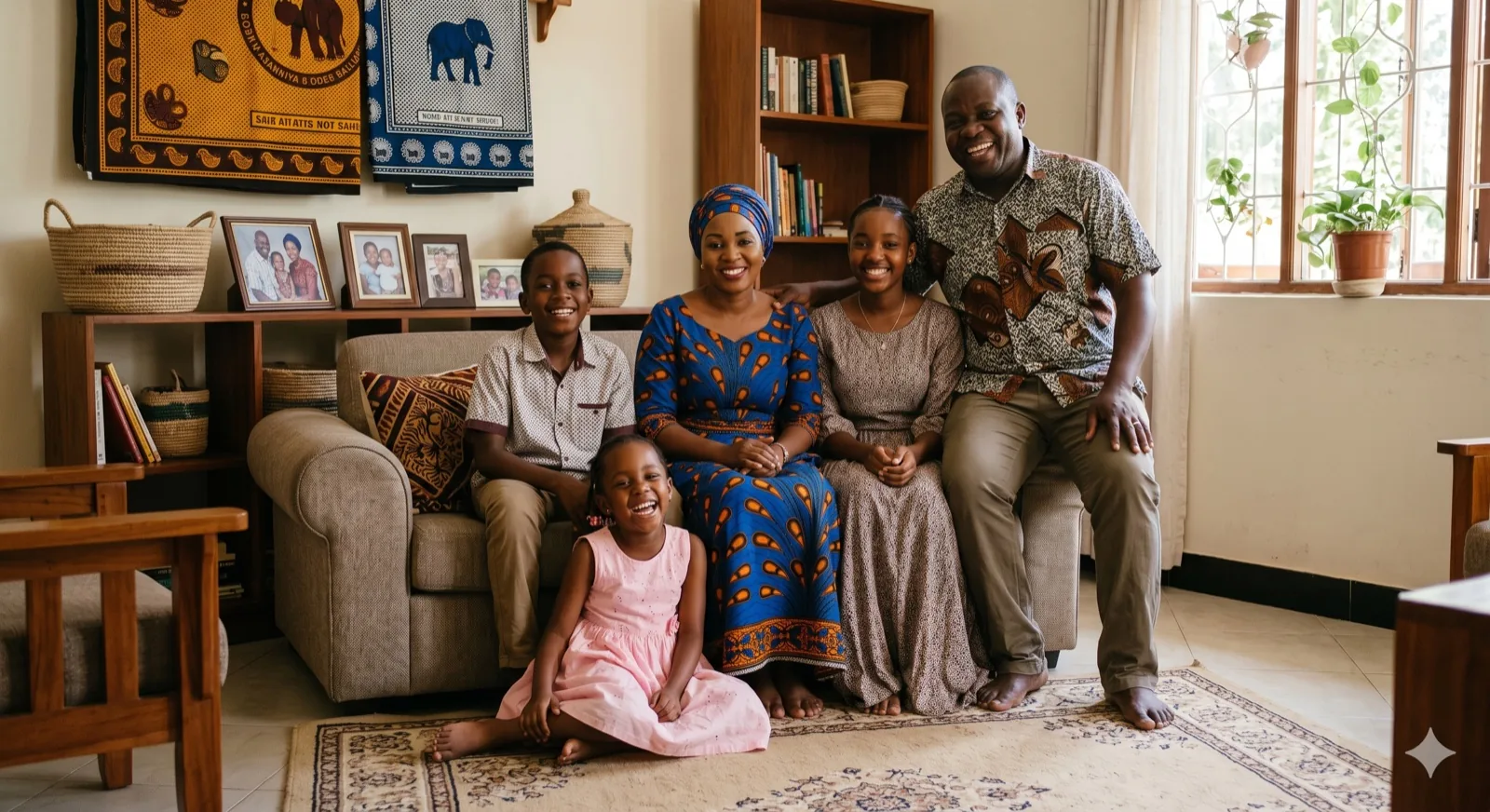

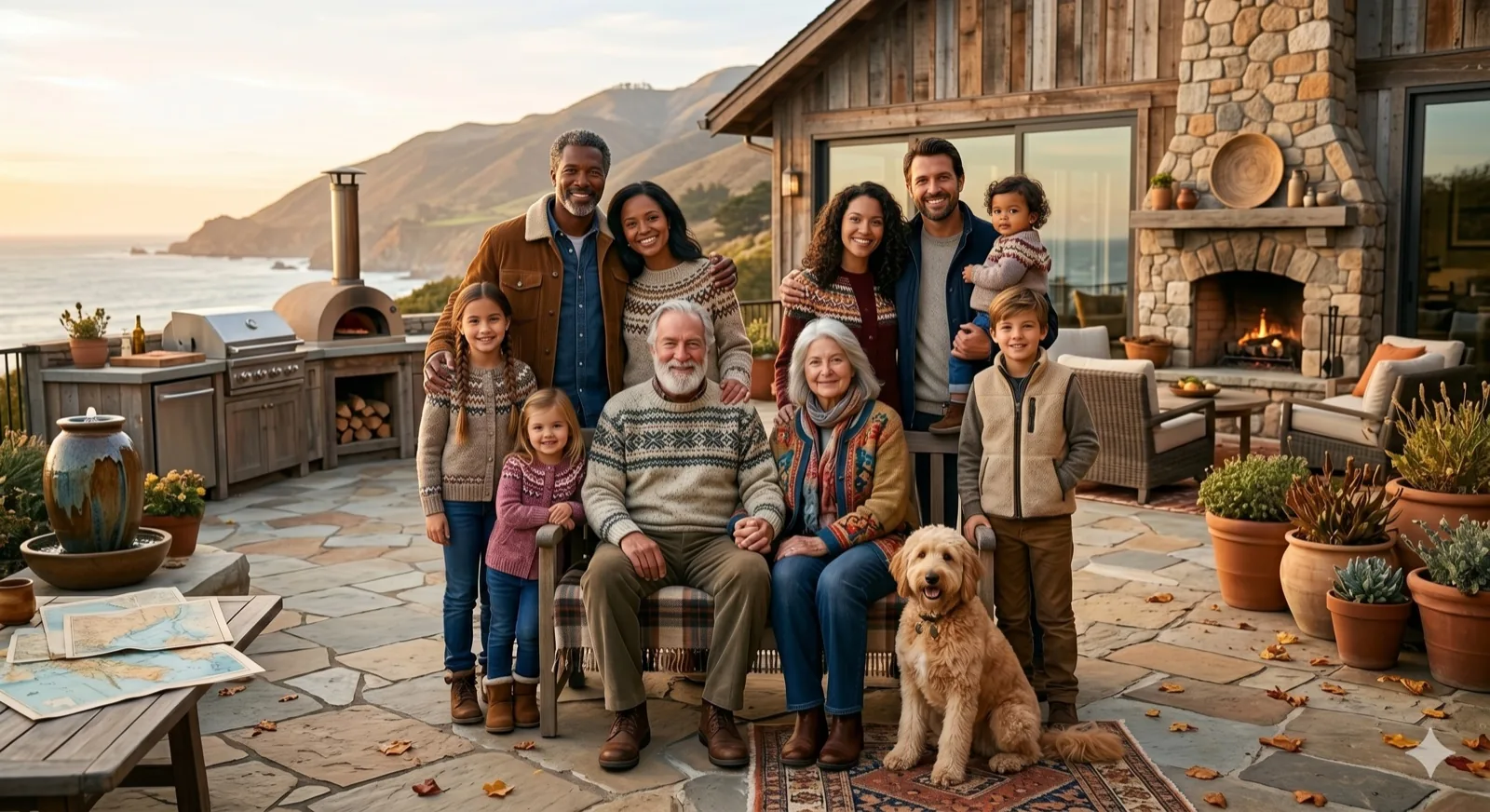
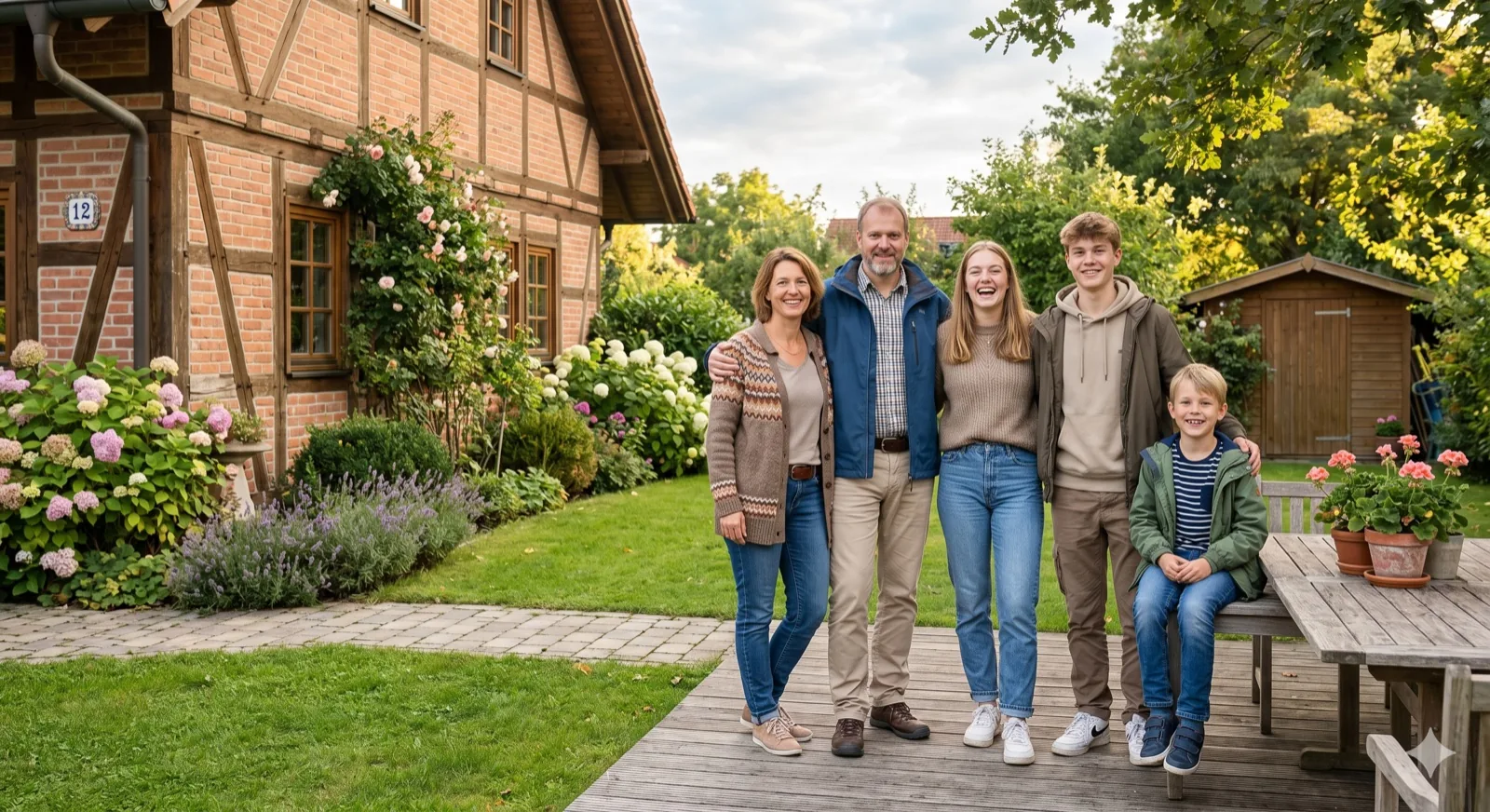
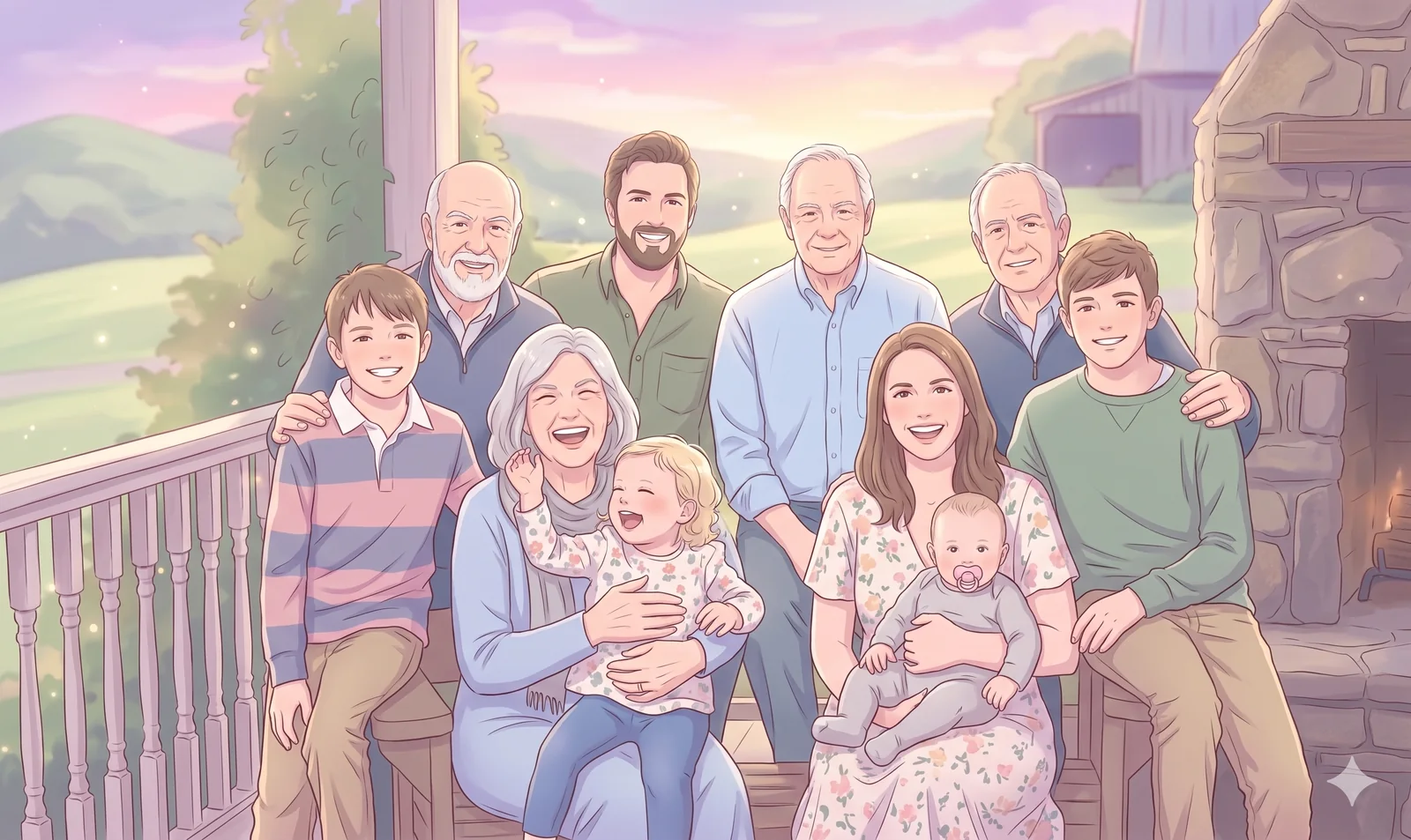
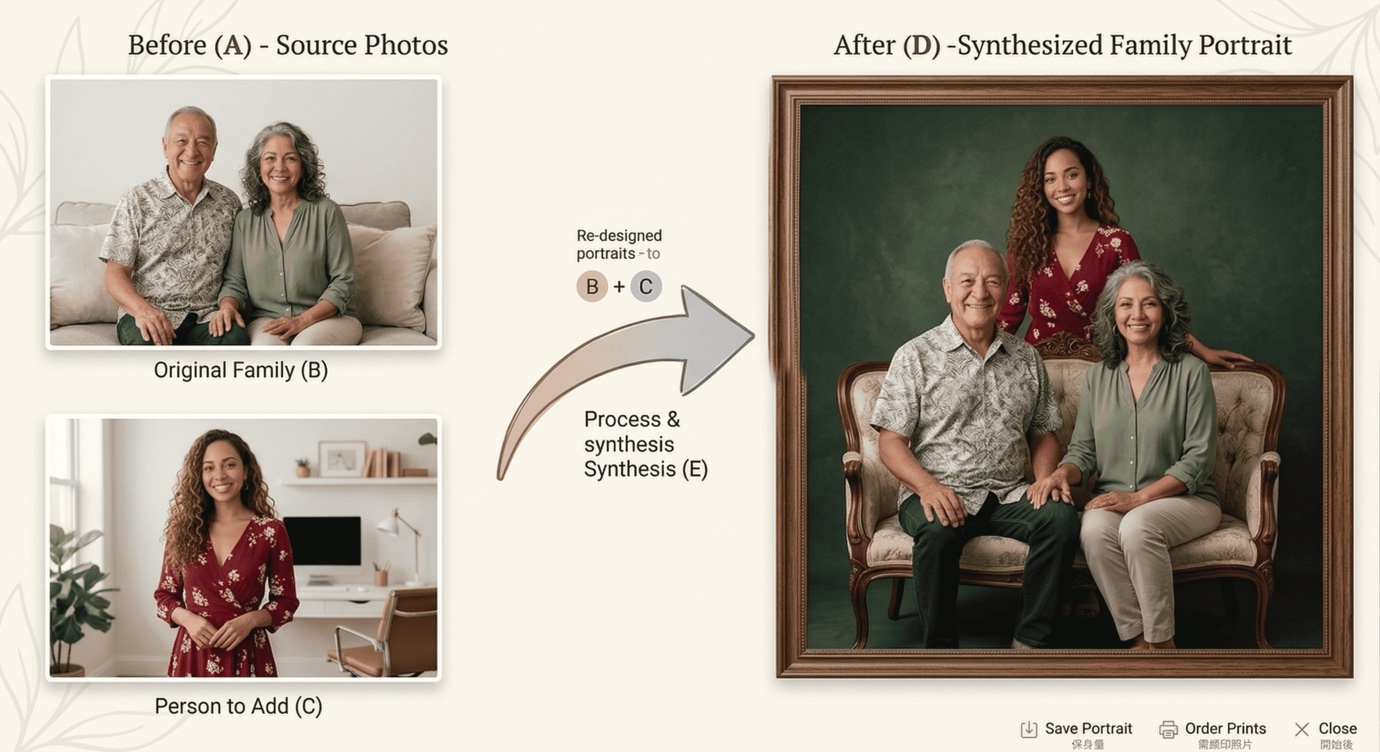
01 / Separate Photos
Combine family pictures from different moments
When family members were photographed on different days or in different places, the editor can bring the photos together into one natural portrait.
Combine separate photosEdit, repair, combine, and restyle family photos
This family photo editor helps you repair missing people, include pets, and combine separate pictures into one natural portrait with Kinpict.
Open The Family EditorStart with the photos you already have, then turn them into one family image that feels complete.
What do you want to fix or edit?
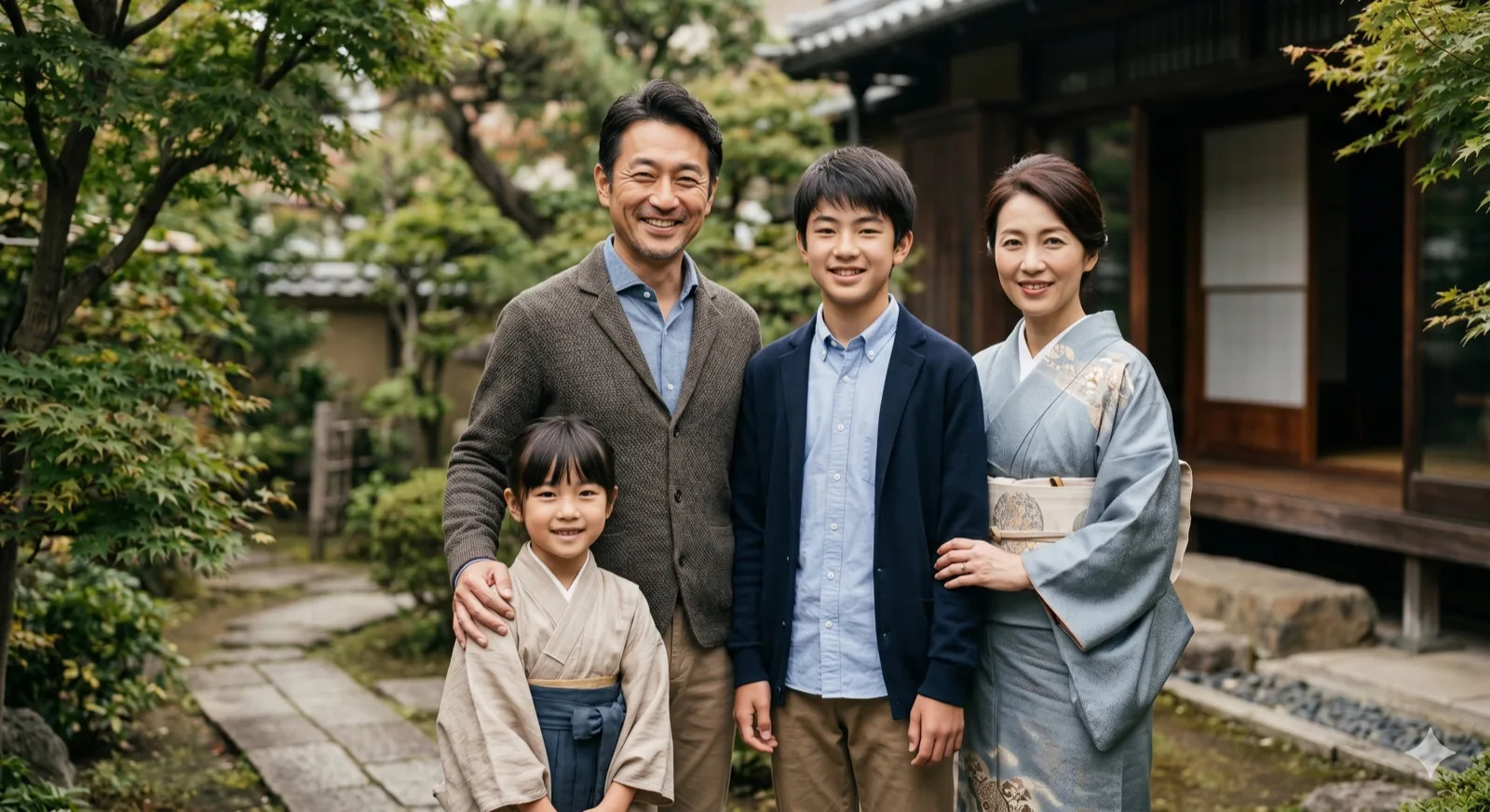
Swipe or scroll to explore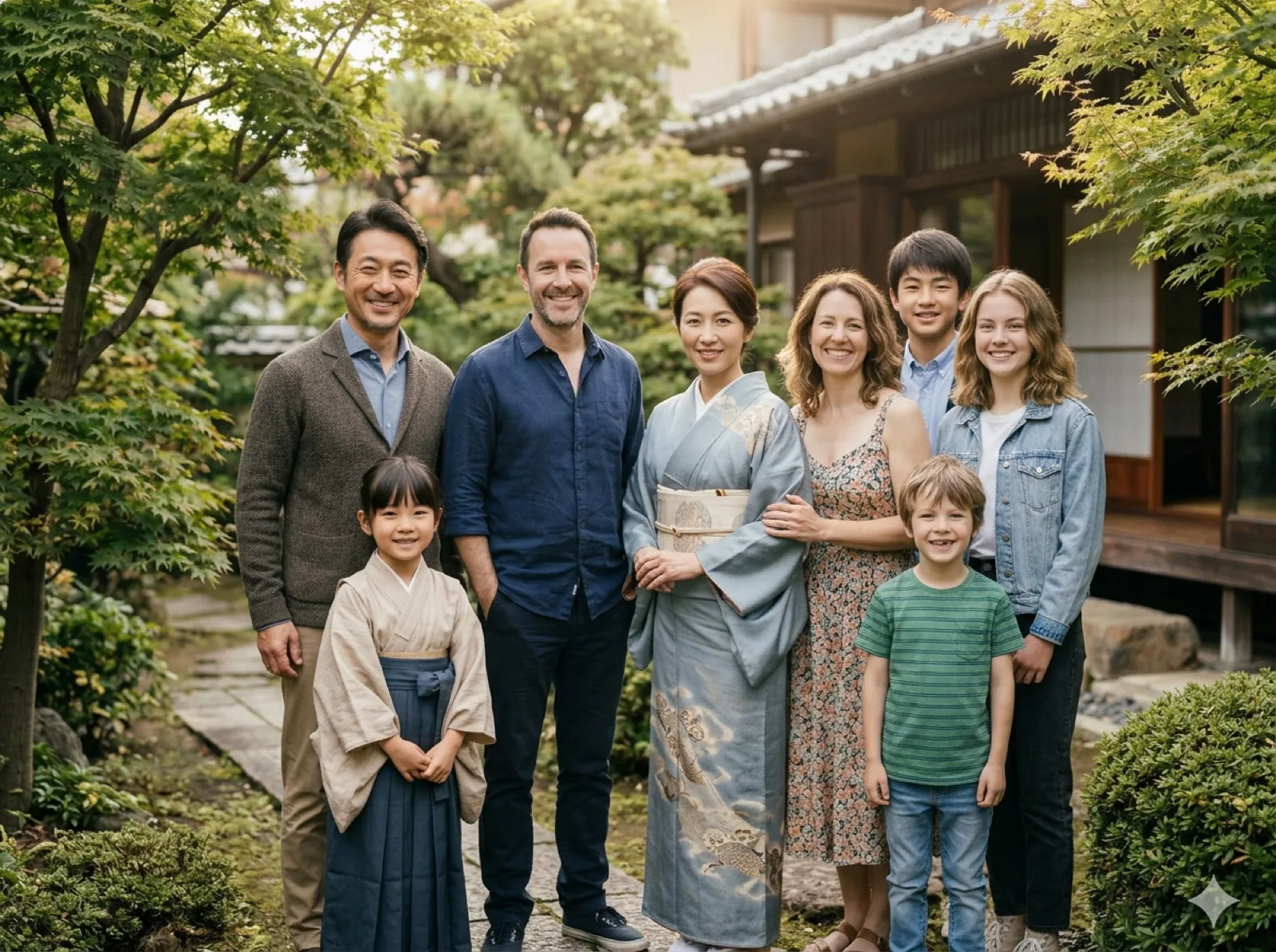 Combine Separate Photos Turn different family pictures into one natural portrait.
 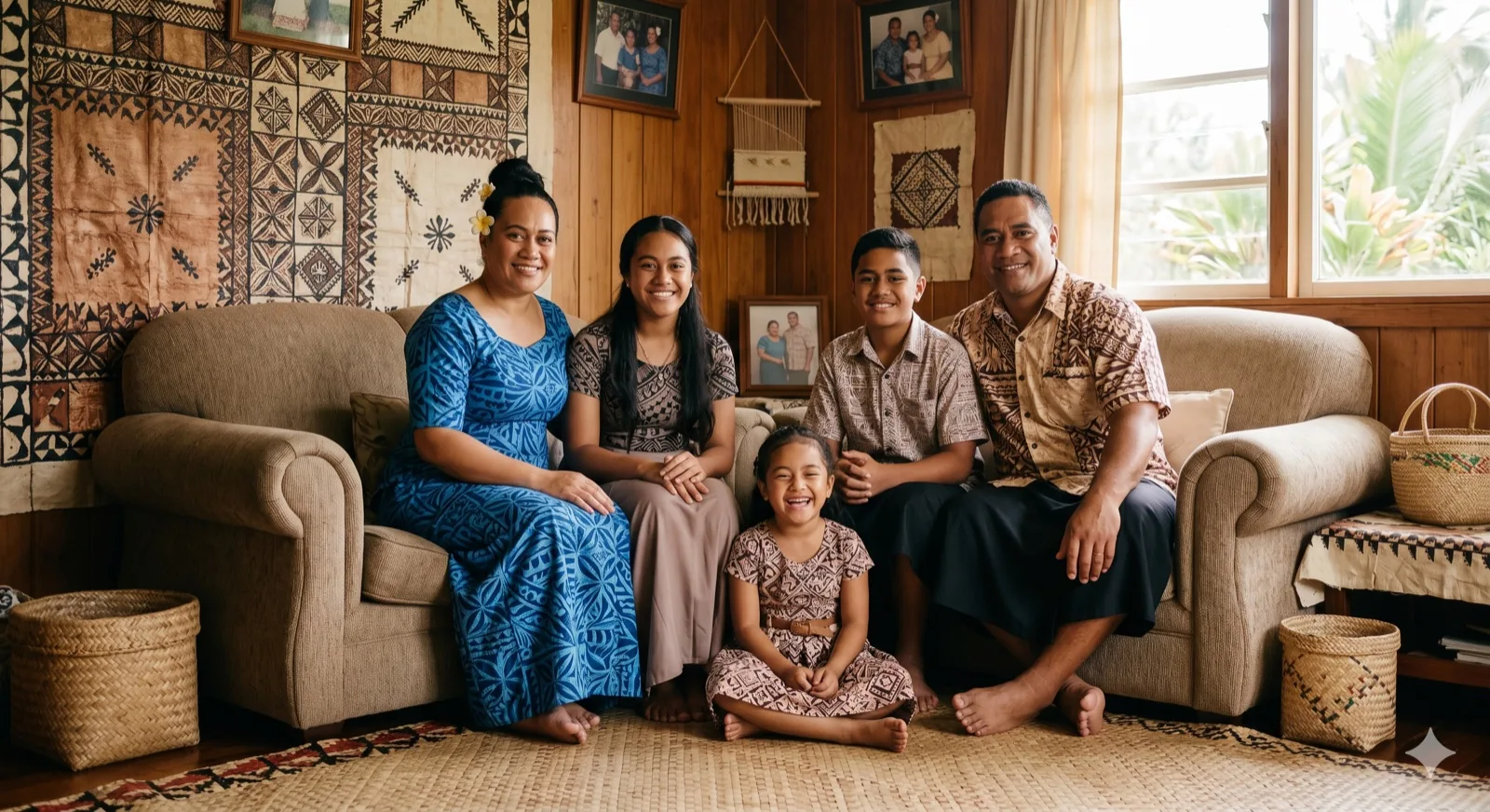 Add Missing Person Complete a family photo when someone was absent.
 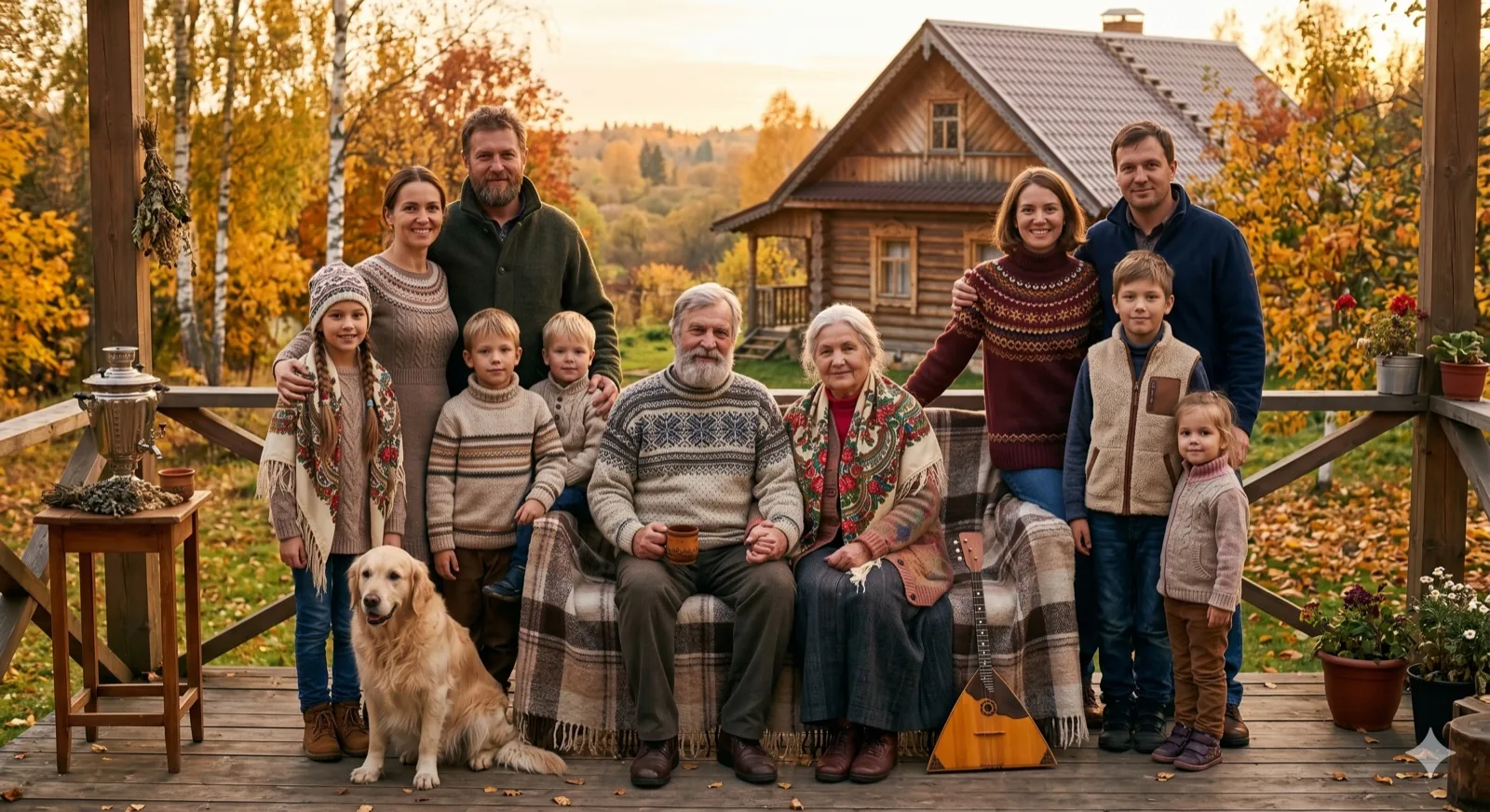 Family With Pets Keep dogs or cats naturally inside the family scene.
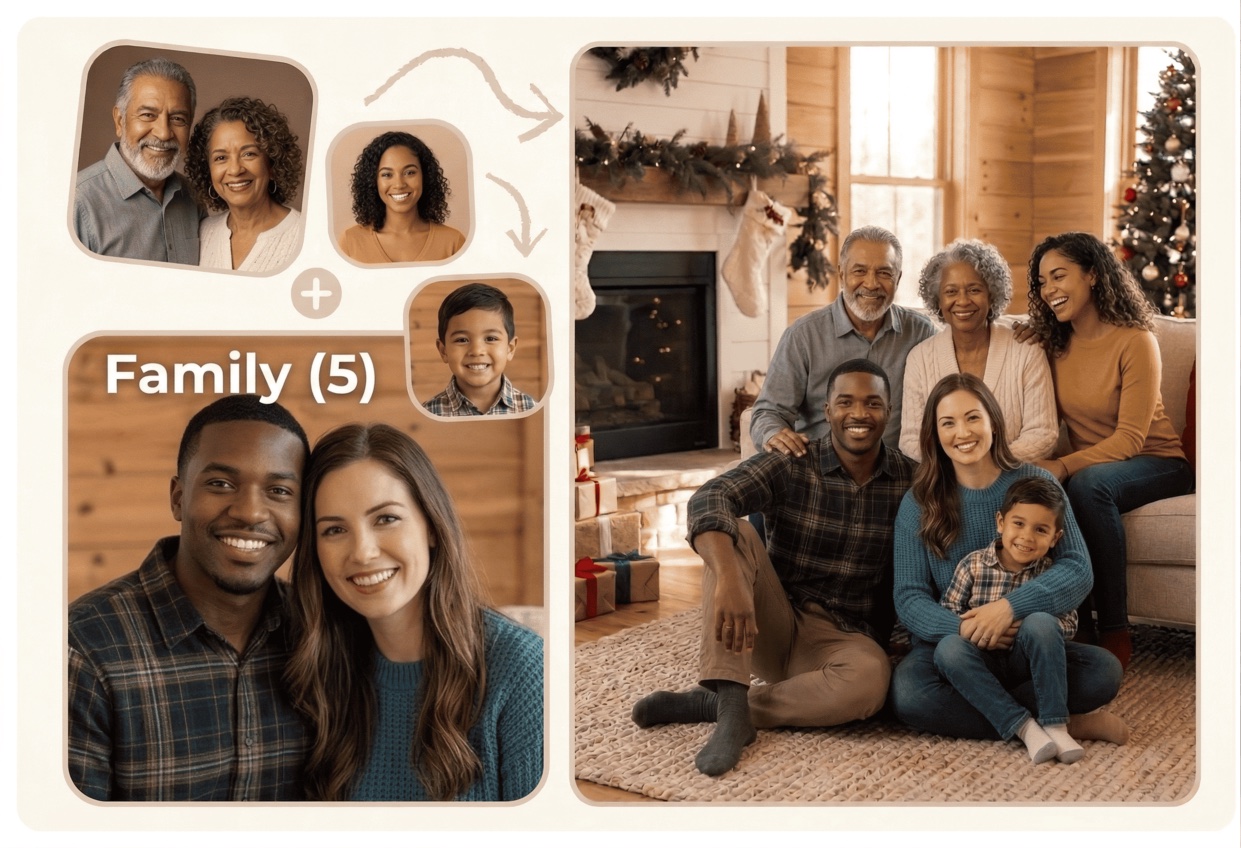
  Holiday Or Christmas Create a warm seasonal family portrait for cards.
 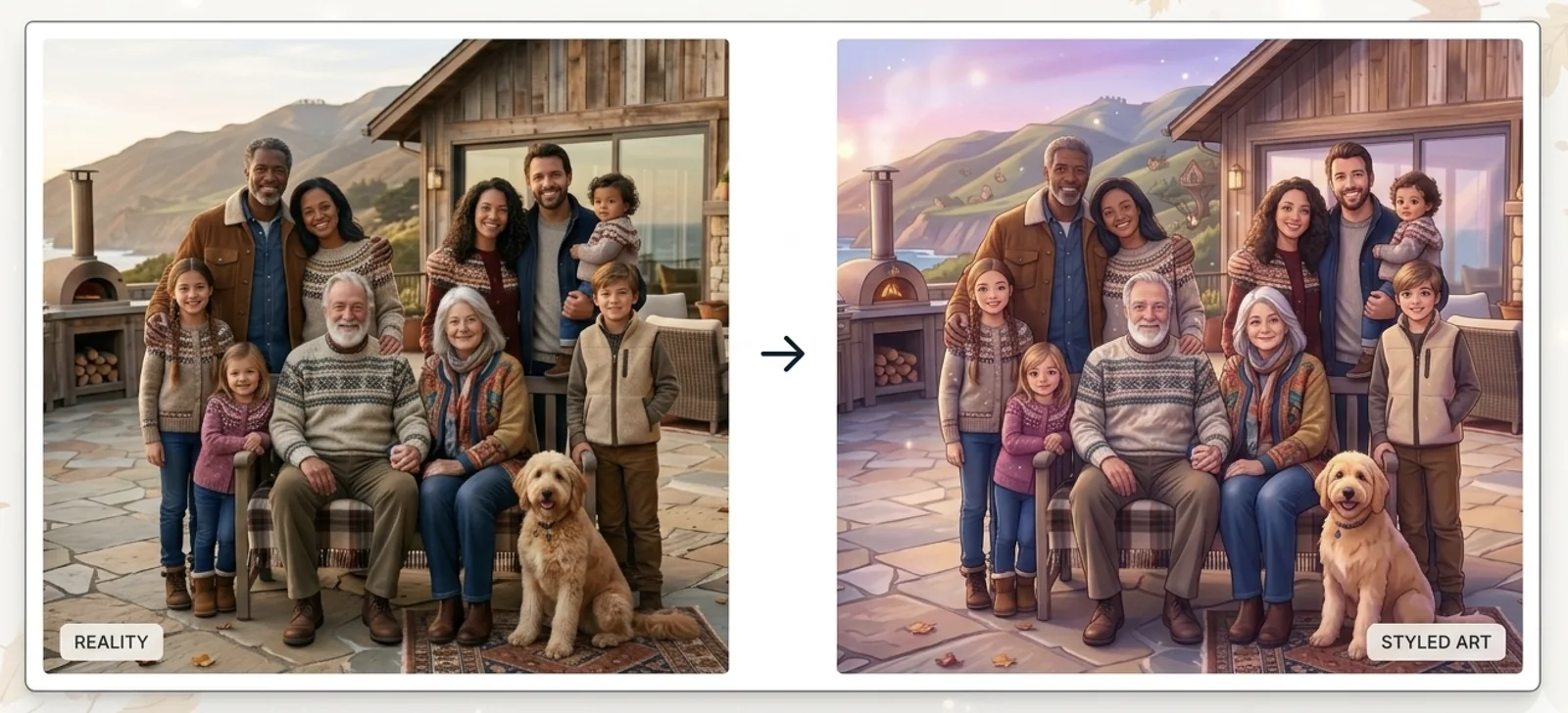 Anime Family Style Change the same memory into an illustrated look.
 Result Preview
Natural family composition.. Upload photos, then generate one cohesive family photo.
What people search for
A family photo editor is usually searched for one of four jobs: combine separate pictures, add a missing person, include pets, or change the same memory into a different style.
01 / Separate Photos
When family members were photographed on different days or in different places, the editor can bring the photos together into one natural portrait.
Combine separate photos 02 / Missing Person
If a parent, child, or grandparent could not be there, the editor helps place them naturally so the photo feels complete.
Add a missing person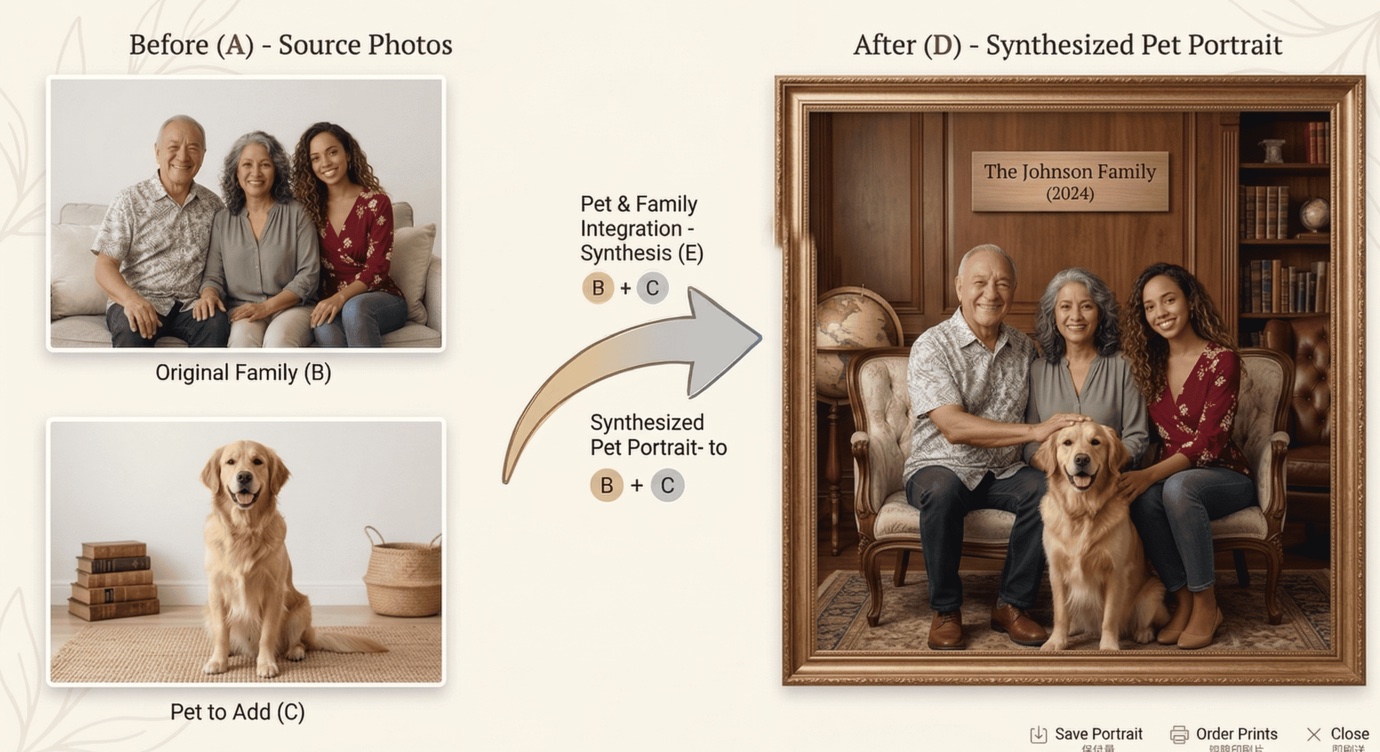
03 / Pets
A family photo editor can keep dogs or cats in the frame without making them feel pasted in or out of scale.
Add pets naturally 04 / Style Change
Some users want the result to stay realistic, while others want a holiday look or an anime version. The editor can guide both directions.
Try anime or holidayA family photo editor is a practical tool for turning family pictures into one better final image. It can combine separate family photos, repair an incomplete portrait, and help the result feel more natural than a basic collage.
People usually come here when the original photo is close, but not quite finished. Maybe one person is missing, maybe the pet belongs in the frame, or maybe the group needs a cleaner layout before it feels worth sharing. That is why a family photo editor is useful: it helps you fix the family moment without starting from zero.
If you need a more specific workflow, Kinpict already has dedicated pages for family photo from separate photos, add missing person to family photo, family photo with pets, and family photo anime generator use cases.
Bring together photos that feel unfinished when one person is missing, the spacing looks odd, or the group needs a cleaner composition.
Use a family photo editor to merge separate photos into one believable portrait when relatives were photographed in different places or on different days.
Replace a pasted-together feel with a unified family image that reads like one photo instead of several mismatched layers.
Move the same family scene toward a warm portrait, a holiday look, or an anime version without changing the core family story.
The goal is not heavy retouching for its own sake. The goal is to remove the awkwardness that comes from separate photos, uneven spacing, or a scene that needs one more person to feel complete.
The simplest workflow is to start with clear photos, ask for one change at a time, and let the editor build one believable family portrait.
Step 1
Start with the clearest family images, even if they were taken at different times, in different rooms, or on different devices.
Step 2
Ask for a natural family portrait, a missing person, a pets-included layout, or a style change such as holiday or anime.
Step 3
Check whether faces, spacing, and body scale feel believable before you move on to a final version.
Step 4
Download the completed image for sharing, printing, albums, or a keepsake you can come back to later.
Searchers usually want one of a few clear outcomes: combine separate photos, add a missing person, include pets, or change the family photo into a different style.
Turn individual family photos into one complete image when there is no single group shot to use.
Complete a portrait when a parent, child, or grandparent was missing from the original moment.
Include dogs or cats naturally so the final image still feels family-first.
Switch the same family memory into an illustrated style when you want a softer keepsake look.
Prepare a seasonal family image for cards, keepsakes, or a warm winter portrait.
Blend two family pictures into one cleaner result when a smaller source set is all you have.
Good source photos make the editor work less and guess less. That usually gives you a family image that feels more believable and less artificial.
Use photos with visible faces so the editor has enough detail to keep people recognizable.
Choose images with similar lighting when possible, because strong lighting differences can make the final result look less cohesive.
Avoid heavily blurry images, since a family photo editor works better when eyes, nose, mouth, and hair outlines are readable.
Do not mix too many conflicting angles if you can help it. A front-facing photo and a side profile are harder to combine naturally.
Fewer good photos often work better than many weak ones. Clear, simple sources usually give the model less to guess.
Blurry faces, extreme angle differences, and harsh shadows force the model to guess. The more it has to guess, the more the final portrait can drift from the family you intended.
This is best for people who already have usable family photos but need one image that feels complete enough to share, print, or keep as a memory.
Try again when the clearest source photo is still blurry, when every image uses a different angle, or when important details are hidden by hair, glasses, or motion.
If you only have a few strong photos, use those first. A smaller set of readable pictures often beats a large set of weak images because there are fewer contradictions for the model to solve.
A family photo editor responds best to short instructions. Say what needs to change, what should stay natural, and what mood you want.
Fix this family photo.Edit this family photo into one natural portrait. Keep the composition balanced and make the result feel realistic.Add the missing grandmother naturally and match the existing light so the family photo feels complete.Create a family photo with pets, keep the dog close to the parents, and avoid a pasted-in look.Turn this family photo into an anime portrait with warm colors, clean linework, and gentle expressions.Job + mood + one placement rule.
Example: "Edit this family photo into one natural portrait with soft light and balanced spacing."
Both modes can help you edit a family photo, but they serve slightly different jobs. Standard is better for quick testing, while Enhanced is better for finishing the image.
Use Standard when you are testing the composition, checking whether the photo set works, or making a quicker edit.
Use Enhanced when the family layout is already close and you want the final result to feel more polished.
Kinpict is strongest when you want one believable family portrait from real photos, not just a stylized image effect.
A family photo editor helps you turn separate family pictures into one natural-looking result, repair incomplete portraits, and adjust the final mood or style.
Yes. That is one of the main use cases. You can upload separate family photos and create one shared portrait from them.
Yes. A family photo editor can help place a missing relative naturally into the scene when you have a clear source photo to work from.
Yes. You can include pets naturally, especially when the pet belongs in the scene and the source photo is clear enough to read well.
Yes. You can guide the same family photo toward an anime version when you want a more illustrated keepsake look.
The most common reasons are blurry faces, strong lighting differences, conflicting angles, or asking for too many changes at once.
Try cleaner source photos, reduce the number of conflicting angles, and ask for one change at a time instead of several changes in one prompt.
A family photo editor works best when it helps real photos feel complete.
This guide is written for users who want a believable family portrait from real photos, not just a stylized AI image.
Open The Family EditorChoose a method to continue.
Enter your email to receive a 6-digit verification code.