Kinpict Blog / Guide
How to Add a Person to a Photo Naturally
A practical guide to adding someone to a family, group, or travel photo while keeping the final image believable.
What this guide covers
- Natural group-photo editing with AI or manual tools
- Best practices for lighting, scale, and shadows
- Family-photo workflow that avoids a pasted-on look
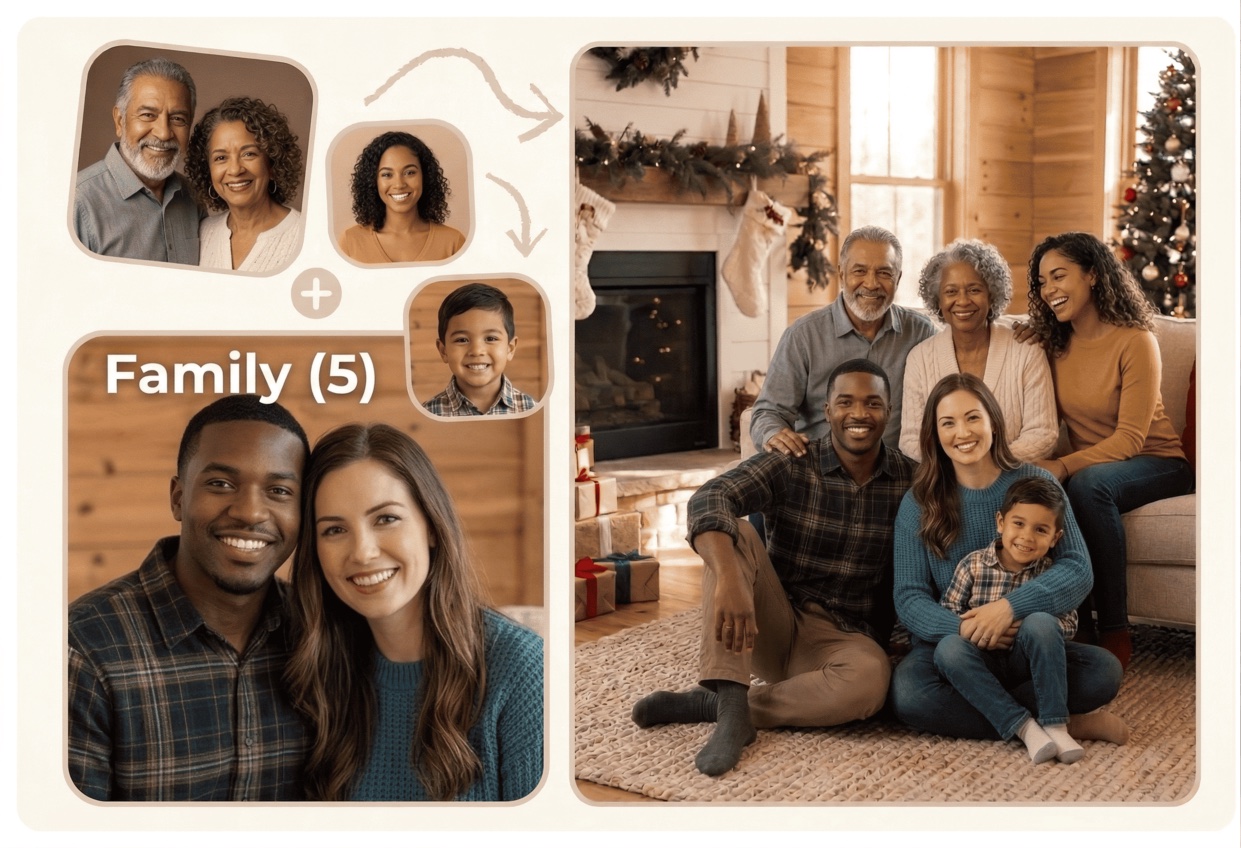
If you want to add a person to a photo and keep the final image believable, start with a clean base photo, use one clear source image of the person, and match the light, scale, and camera angle before you download anything.
What people usually mean when they search this
Most people are not trying to create a surreal composite. They usually want to finish a family photo, repair a group shot, or include someone who missed the original moment.
This usually shows up in a few real situations:
- a family member missed the reunion photo
- a friend is absent from a trip picture
- a child was asleep or not ready when the picture was taken
- you want to complete a holiday card or anniversary photo
- you have two separate photos and want them to read as one scene
If that sounds familiar, the goal is not just to place a person somewhere on the canvas. The goal is to make the photo feel like it was taken that way in the first place.
The shortest path to a natural result
The easiest way to make the edit look real is to keep the scene simple. That matters more than the tool you use.
A believable result usually depends on four things:
- similar lighting direction
- similar camera height and angle
- enough empty space in the base photo
- a source photo with a clear face and body shape
Quick answer
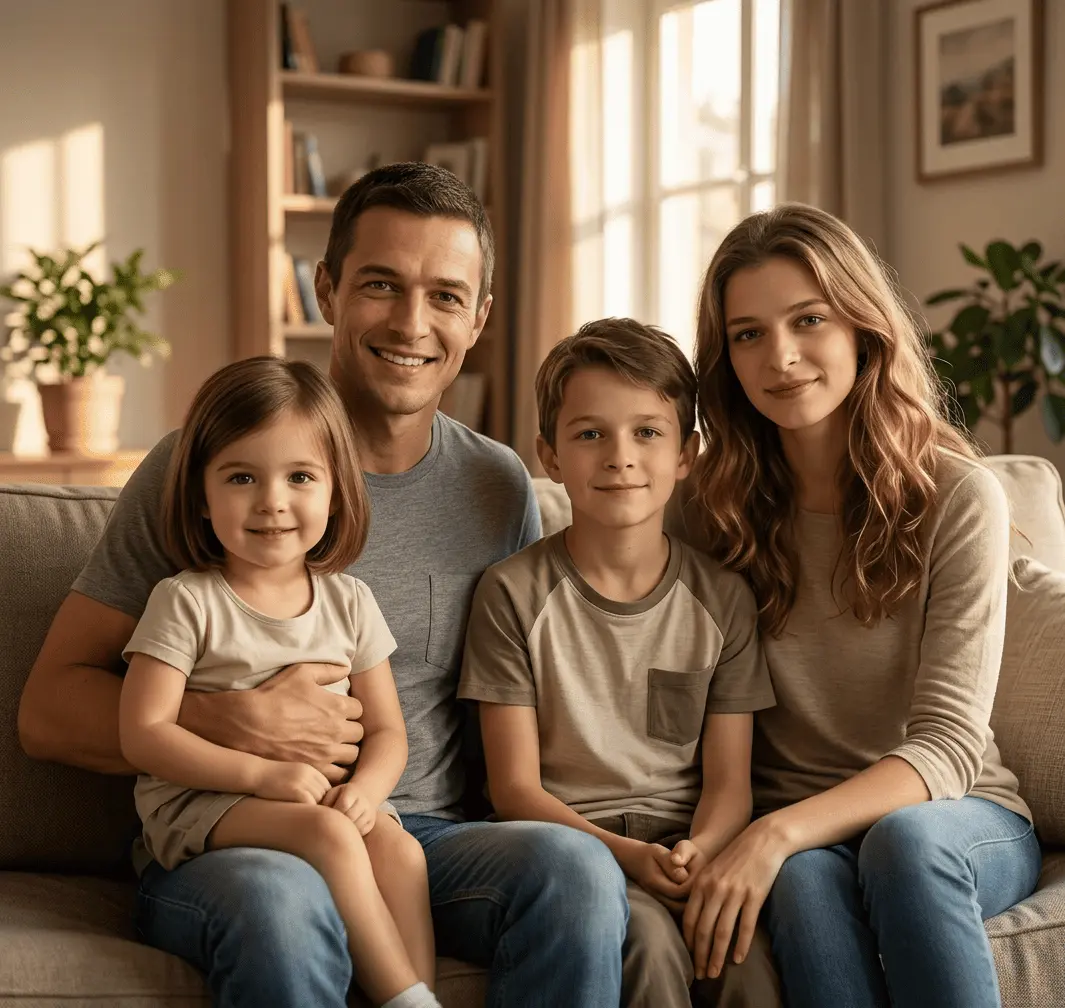
The most reliable workflow is simple: choose a clean base photo, use a clear source image of the person, then check the final image for light, scale, and shadows before you export it.
If the base photo is crowded, heavily backlit, or shot from a strange angle, the edit gets harder. In those cases, choose another photo first. A cleaner starting point usually matters more than the amount of editing effort later.
How to add a person to a photo step by step
- Pick the best base photo
Choose the photo that already has the right mood, background, and spacing. If the scene is too busy, switch to a cleaner option. - Use a clear source photo of the person
The face should be visible. Avoid heavy blur, sunglasses, harsh shadows, or extreme crop. - Match the placement
Put the person at a believable height and distance from the rest of the group. A pasted-in look usually comes from wrong scale, not from the face itself. - Match the light and color
The person should share the same light direction and color temperature as the rest of the photo. - Check edges, shadows, and hands
Those are the details that make an edit feel finished or fake. - Review on a phone
If the edit still looks natural at small size, it is usually strong enough for sharing or printing.
If you are using AI, keep the prompt short
AI works best when the request is simple. Long instructions often create more contradictions than clarity.
A useful prompt usually says three things:
- who should be added
- where they should go
- what kind of look you want
Family photo
Add the missing person naturally beside the family, keep the same indoor light, and make the scene feel warm and realistic.
Group photo
Insert the person on the open right side of the photo, match the camera angle, and keep the group spacing balanced.
Travel photo
Add the friend into the scene with matching daylight, natural scale, and a relaxed vacation feel.
Holiday photo
Complete the family picture with the missing relative and keep the holiday atmosphere soft, cozy, and believable.
The point is not to describe every pixel. The point is to reduce guesswork.
If you are editing manually
Manual editing still makes sense when you want exact control. It is slower, but it gives you more control over the final composition.
A manual workflow usually includes:
- cut out the person cleanly
- place them at the right size
- blend the background edges
- adjust color and contrast
- add or soften shadows
- check the final image at 100 percent before export
This route is useful if you already know your way around a photo editor. If not, it can take longer than the photo is worth. For most people who just want a believable family or group photo, a guided workflow is faster.
Common mistakes that make the result look fake
Most awkward results come from one of these problems:
- the source photo is blurry or too small
- the person is facing a different direction from everyone else
- the light on the person does not match the base photo
- the person is scaled too large or too small
- the background is too busy
- the final image has no shadow or ground contact
- too many edits are requested at once
The easiest fix is usually to simplify the input, not to keep pushing the same bad combination through the tool.
When to use a family-photo workflow instead
If the photo is a family picture, reunion photo, or other meaningful memory, a family-specific workflow usually works better than a generic editor. That is because family photos are less about novelty and more about making the final image feel emotionally true.
Kinpict's add missing person to family photo workflow is built for that exact use case. If you are starting from separate images, the family photo from separate photos guide may be the better fit. And if you want to refine the composition after the fact, the family photo editor can help.
A quick checklist before you export
Before you save the final version, ask yourself:
- Does the added person match the scene's lighting?
- Does the scale look believable?
- Does the photo still feel like one image?
- Would it look natural on a phone screen?
- Would I be comfortable sharing or printing it?
If the answer to most of those questions is yes, the edit is probably strong enough.
FAQ
Can I add a person to a photo without Photoshop?
Yes. A guided AI workflow or an easier online editor can handle a lot of the heavy lifting. The key is still to start with a clear base photo and a clean source image.
What type of photo works best?
A photo with visible faces, moderate lighting, and enough empty space usually works best. Tight crops and heavy blur make the result harder to blend.
How do I keep the final image natural?
Match light, angle, scale, and background depth. If one of those is off, the image usually starts to feel pasted together.
Is this only for family photos?
No. It also works for group photos, travel shots, reunion pictures, and other scenes where someone was missing from the original moment.
What if the result still looks off?
Try a different base photo or a clearer source photo before you keep adjusting the prompt. Better inputs usually solve more problems than more editing does.
Final takeaway
If you want to know how to add a person to a photo, start with the photo that already has the best light and composition. Use a clear source image, keep the instructions short, and check the result for scale and shadow before you export.
For family memories, the most useful next step is usually the add missing person to family photo workflow. It is designed to help the final image feel complete without turning it into an obvious collage.